
 Create a Student Account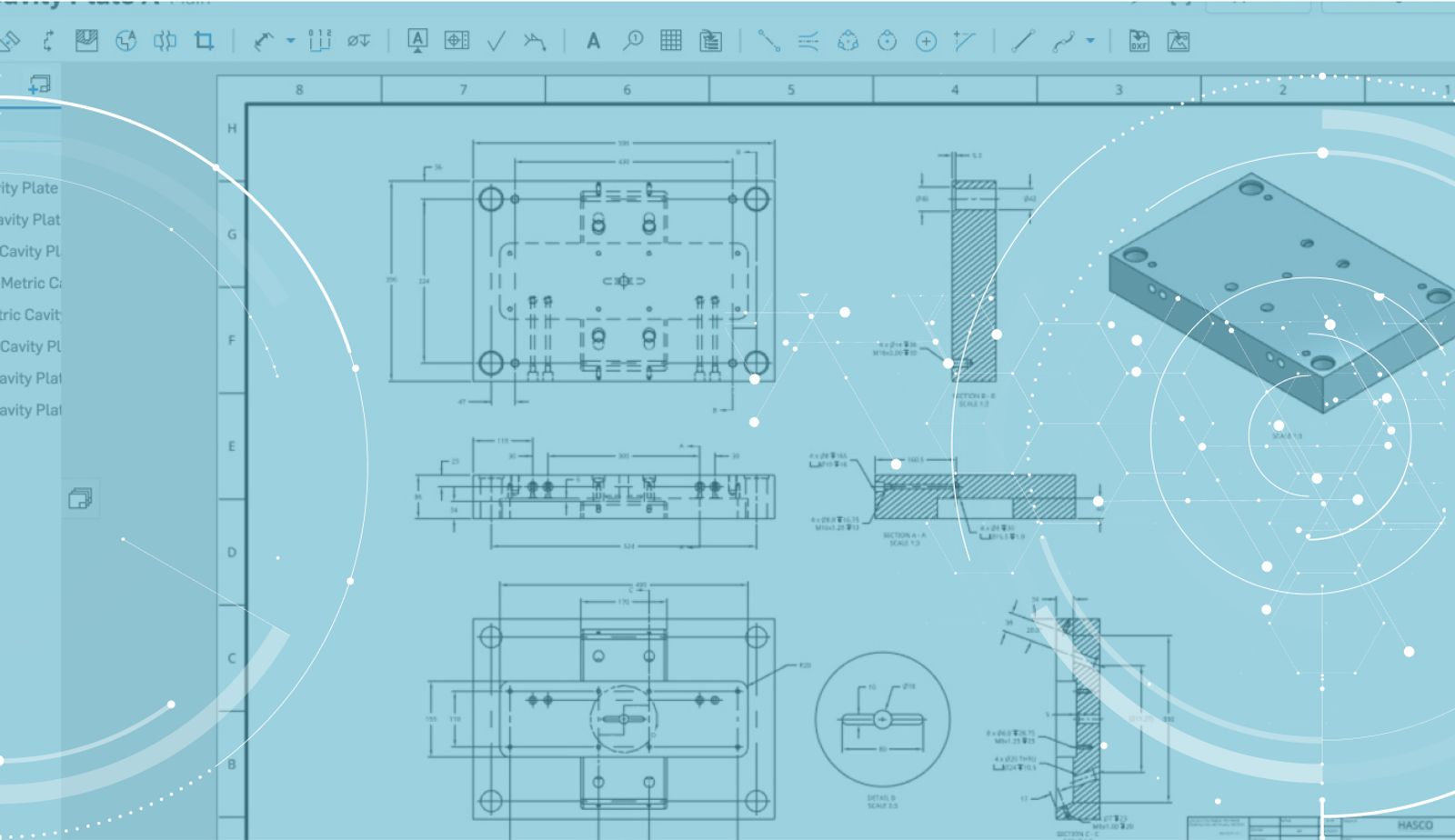
1:08
Today’s tech tip is for those creating drawings in Onshape. One common question we hear is “How do I update my drawing if I change my template”? Thanks to a recent update, this is now possible. Let’s take a closer look.
Take the example below.
In this example, we have finished creating our drawing in Onshape, but changes have been made to the template that created this drawing and we need a way to switch out the template.
To start, right-click anywhere on the blank sheet of the drawing and choose the right-click menu option for “Sheet properties.”
Then, in the Sheet properties dialog, choose the option to “Select a DWT.”
Then browse to the updated template and select it, and the drawing will update.
In this example, we switched the drawing template for one that included a title block and custom properties that are linked to the sheet reference. But you could use this anytime your template changes and you want to update drawings that were created prior to that change.
Interested in more details? Watch the video at the top of this blog or take the Onshape Learning Center course on “Best Practices for Creating Onshape Drawing Templates.”
So that’s it! The next time drawing templates change, simply swap them out for the new template following this tip.
Latest Content
- Blog
- Becoming an Expert
- Assemblies
Built to Scale: Why Large Assemblies Don’t Slow Down in Onshape
07.16.2026 learn more- Blog
- News from Onshape @ PTC
- Artificial Intelligence
Onshape Labs: AI in CAD Guided by Designers, Driven by Innovation
07.15.2026 learn more- Blog
- Evaluating Onshape
- Data Management
- Collaboration
- Artificial Intelligence
How the Most Underrated CAD Feature Improves Design Workflows
07.09.2026 learn more