
 学生アカウントを作成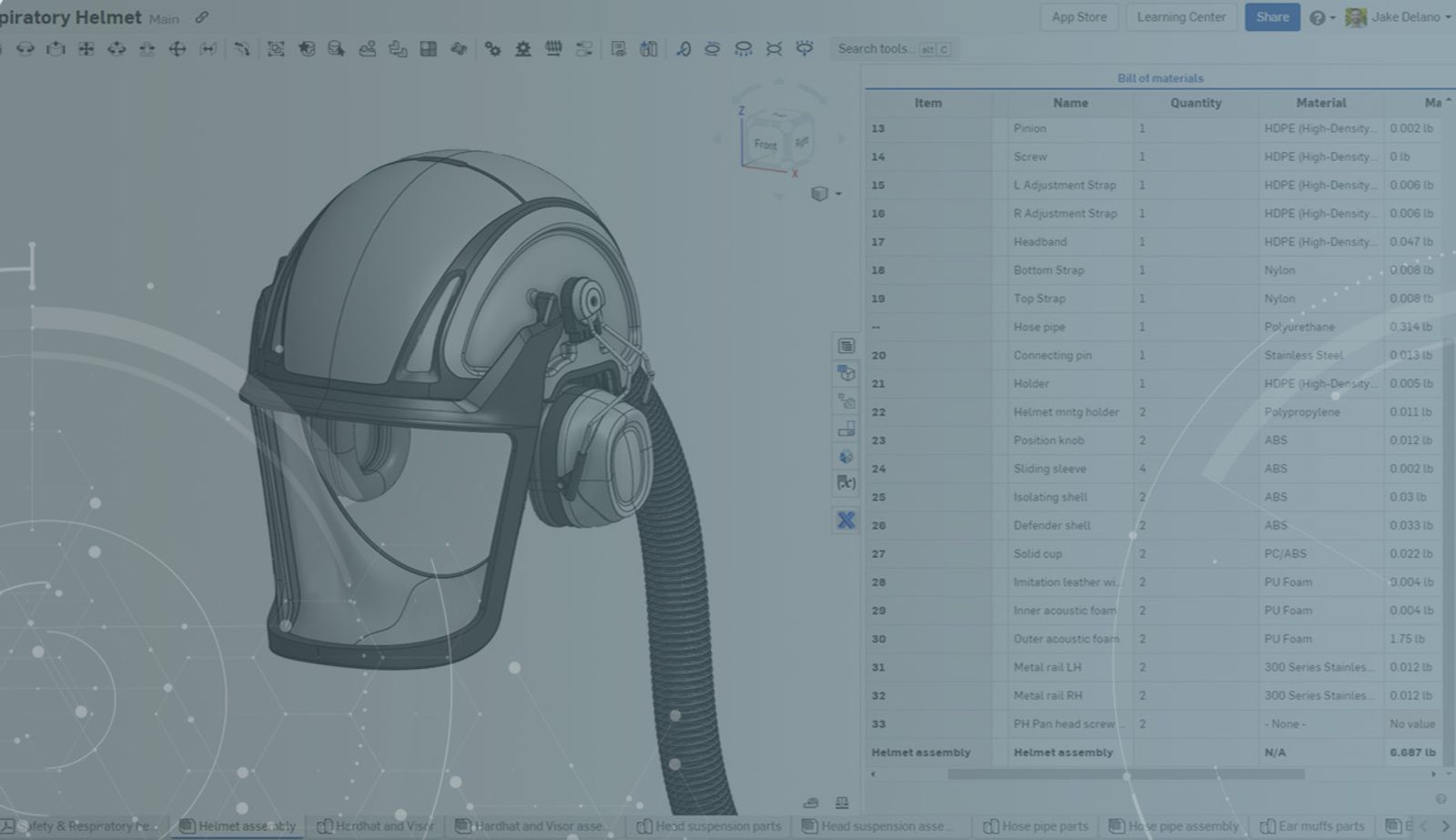
1:11
If you find yourself in a situation where you need the sum of the mass of a top-level assembly included in your Bill of Materials, adding this information is just a few clicks away thanks to aggregated assembly properties.
When it comes time to add the sum of your masses to a BOM, navigate to the three-dot menu in the BOM flyout and select “Show top level assembly row”.
This will create a roll-up of all properties in your BOM that have aggregated assembly properties enabled at the bottom of your BOM.
Note: By default, Onshape already has an aggregated assembly property created with the Mass property, but these can easily be created for other properties as well.
Once created, this aggregation will accept any modifications that you make to the entries inside your BOM. If you manually override the mass, that will update the aggregated mass, and you can also choose to exclude specific parts or assemblies from the aggregation at your discretion. If an entry does not have a mass summation available from lack of material definition, it will be skipped in the aggregation, but not cause an error in your total calculation.
Take a look at the video below for more:
Now you can start adding total masses to your BOMs and explore other properties that can have custom aggregations!
And as always, check out our library of previously published Tech Tips.
Latest Content
- ブログ
- Customers & Case Studies
- Aviation, Aerospace & Defense
Saab’s The Rainforest Team Accelerates Drone Design Using Onshape
04.23.2026 もっと見る- ブログ
- Enterprise
- Government (US)
- Commercial (Pro/Standard)
- 共同作業
- レンダリング
How Non-Engineering Teams Use Onshape to Move Products to Market Faster
04.08.2026 もっと見る- ブログ
- Customers & Case Studies
- 共同作業
- Education & Universities
- 教育
How Bucharest Engineering Students Used Onshape to Build, Publish, and Win
04.07.2026 もっと見る