
 学生アカウントを作成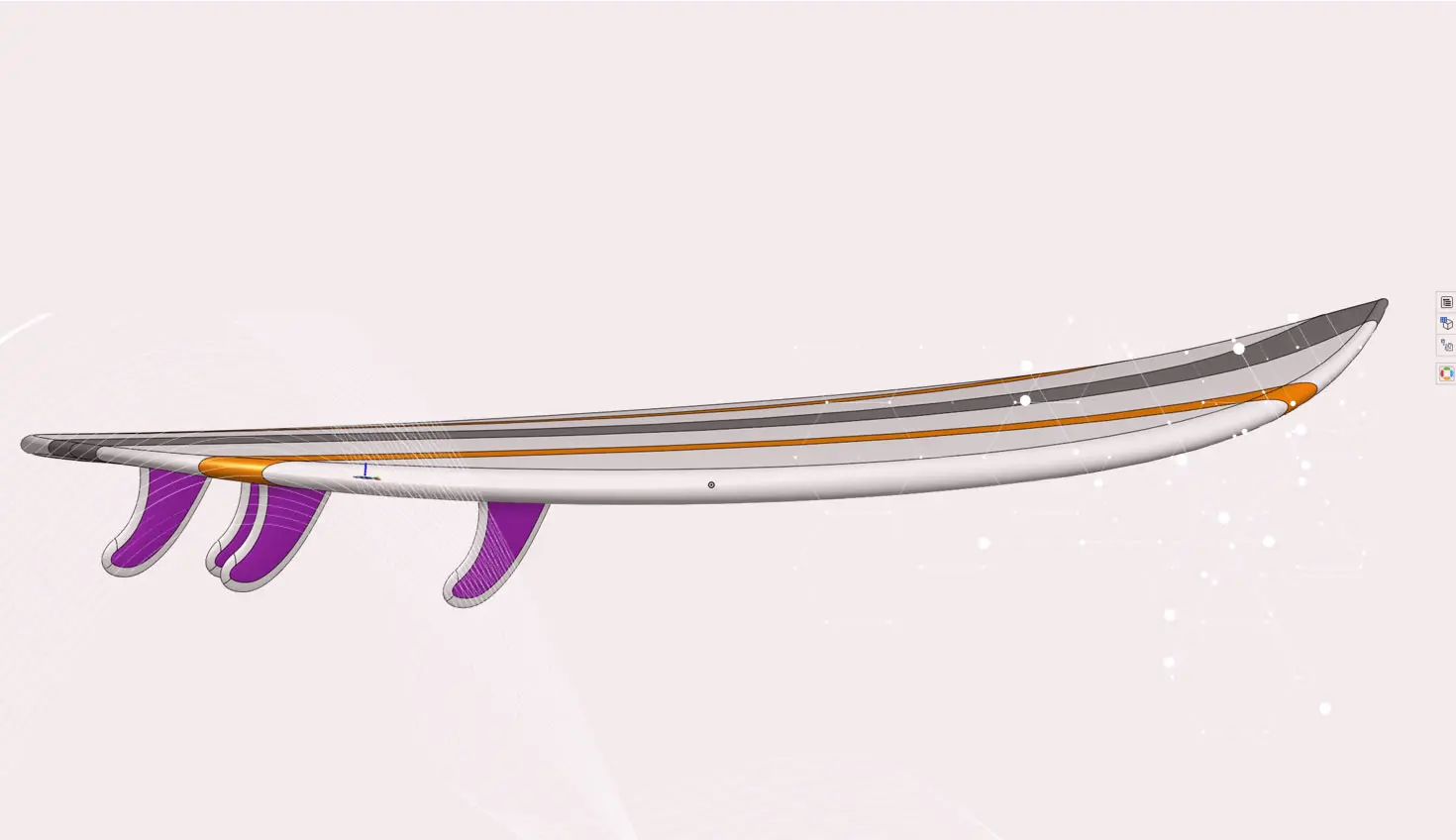
0:49
To split a surface or solid, we can draw a sketch on any parallel plane that will wrap the face we are trying to split. Let’s go through the process step by step.
First, open the Split tool and select the option “Face” (instead of “Part”) to create a new region in the face of the part or surface you are splitting.
Next, select the face(s) that you would like to split, then select the sketch to be used as the tool to split with.
To move this region of the face, select the “Move face” tool and choose the face you want to move, as well as the end type, distance and direction.
You will notice that when working with surfaces, Onshape will also stitch the faces together as you move them. This saves you time and makes these manipulations quicker and easier.
Interested in learning more Onshape Tech Tips? You can review the most recent technical blogs here.
最新コンテンツ
- ブログ
- Evaluating Onshape
- データ管理
- 図面
- Artificial Intelligence
How Onshape is Redefining the Manufacturing Handoff with MBD and AI
09.24.2026 もっと見る- ブログ
- データ管理
- Integrations
- Government (US)
With Quarter20 and Onshape, Database-Driven Documentation from Design to Production
09.23.2026 もっと見る- ブログ
- Evaluating Onshape
- Bill of Materials
- Branching & Merging
- データ管理
- リリース管理
CAD and PDM Capabilities That Speed Up Every ECO
09.17.2026 もっと見る