
 学生アカウントを作成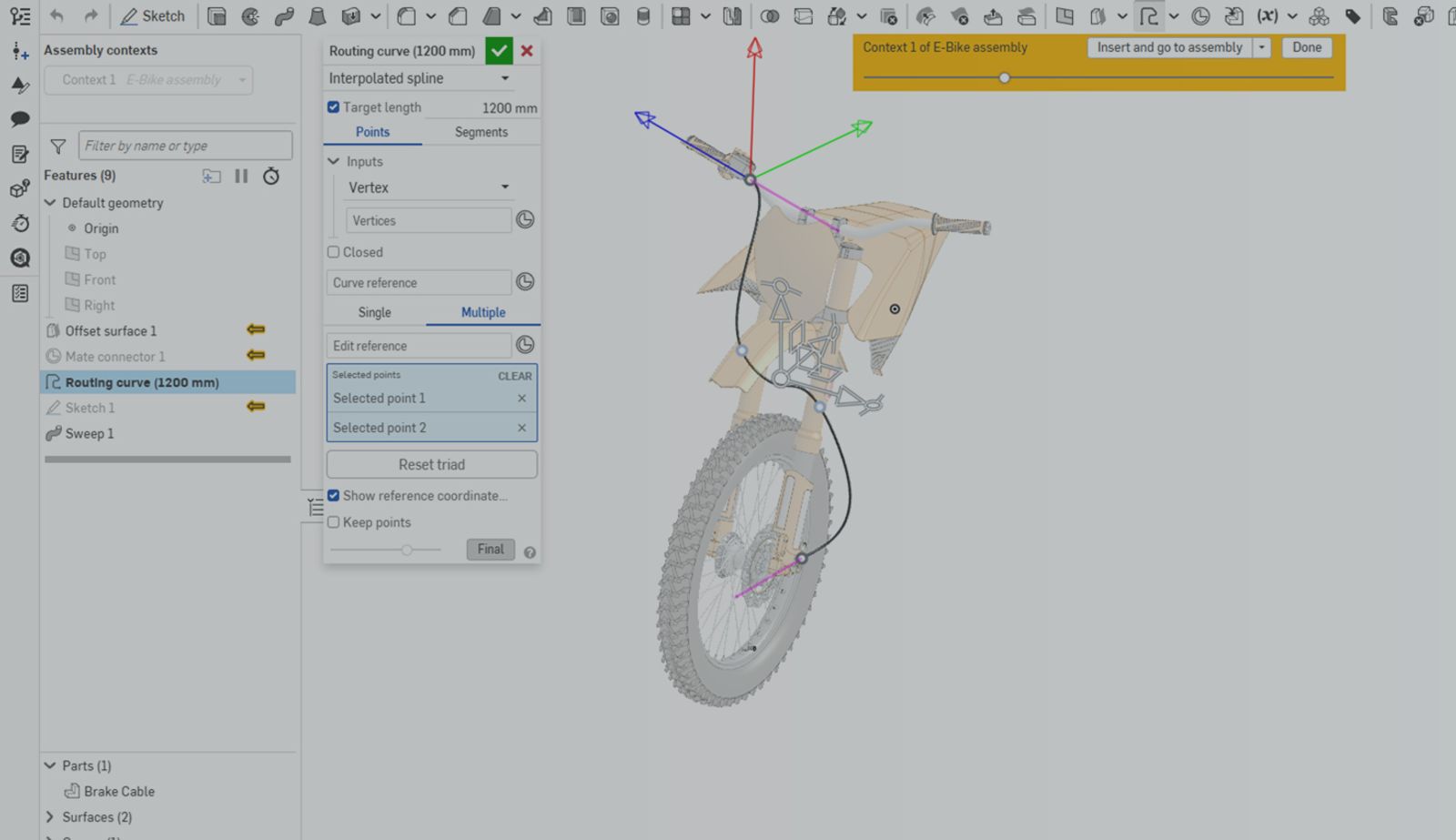
00:00
Summary
Learn how end point derivatives, fixed length, and multi-point editing make Onshape Routing curves more accurate to real-world 3D geometry.
Routing curves in Onshape provide you with the ability to make 3D interpolated splines or polylines to define wires, hoses, pipes, or similar geometry. Past blogs like The Path Less Frustrated: Onshape’s Routing Curve Makes It Possible highlight how to start using the Routing curve, and this Tech Tip expands on how to not just make Routing curves, but also how to use advanced controls to make them more accurate when representing real-world geometry.
End Point Derivatives
Like Bridging curve and 3D fit spline, Routing curve also lets you control the derivative of the endpoints you create. Oftentimes, when routing, the curve you create needs to enter a connector or mounting point.
To create the most accurate curve possible, you can set the endpoints of your curve to match a derivative driven by the direction that a cable would be inserted into a connector. These derivatives can be set by X, Y, or Z directions relative to your manipulator axis, or a specified direction.
By doing this, Routing curve ensures that you won’t run into a situation where you have an improper bend when trying to route a cable into a connector in the real world.
Note that to define a derivative on the endpoint of a curve, you need at least one additional control point on your routing curve for each derivative you set.
Fixed Length
By default, the length of your routing curve updates as you move each control point, calculating the total length of the curve you create. To drive more accuracy to real-world conditions, you can decide to set a target length for your curve.
When this option is selected, Onshape adjusts the shape of your route while maintaining the target length you defined.
As an example, if you know that you’re buying a brake cable that comes in a standard length of 1200 mm, Routing curve respects the total length of the cable while providing you with an accurate representation of how much slack may be between the control points you’ve created your bends with.
To continue providing a more accurate experience, when you change the length of your curve, the control points stay in their original locations, maintaining the bending points while accounting for more material to bend.
Edit Multiple Points at Once
When creating routing curves with multiple control points to mimic complex, real-world routes, fine-tuning each point individually can be cumbersome.
Editing multiple control points at once solves this problem, as you can select as many points as you need and move them in unison in a specific direction. If necessary, you also have control over the coordinate system you use as a reference when editing these points. Now you can adjust multiple points with ease while keeping their original relative positions.
Interested in learning more Onshape Tech Tips? You can review the most recent technical blogs here.
Friends Don’t Let Friends Use Old CAD!
Know a colleague who could benefit from our cloud-native, fully-featured collaborative design platform?
最新コンテンツ
- ブログ
- News from Onshape @ PTC
- Integrations
- レンダリング
Exploring NVIDIA Omniverse Library Integration within Onshape’s Cloud-Native Design Workflow
07.20.2026 もっと見る- ブログ
- Becoming an Expert
- 教育
Prove Your CAD Proficiency with the Certified Onshape Associate Exam
07.21.2026 もっと見る- ブログ
- Becoming an Expert
- アセンブリ
Built to Scale: Why Large Assemblies Don’t Slow Down in Onshape
07.16.2026 もっと見る