
 学生アカウントを作成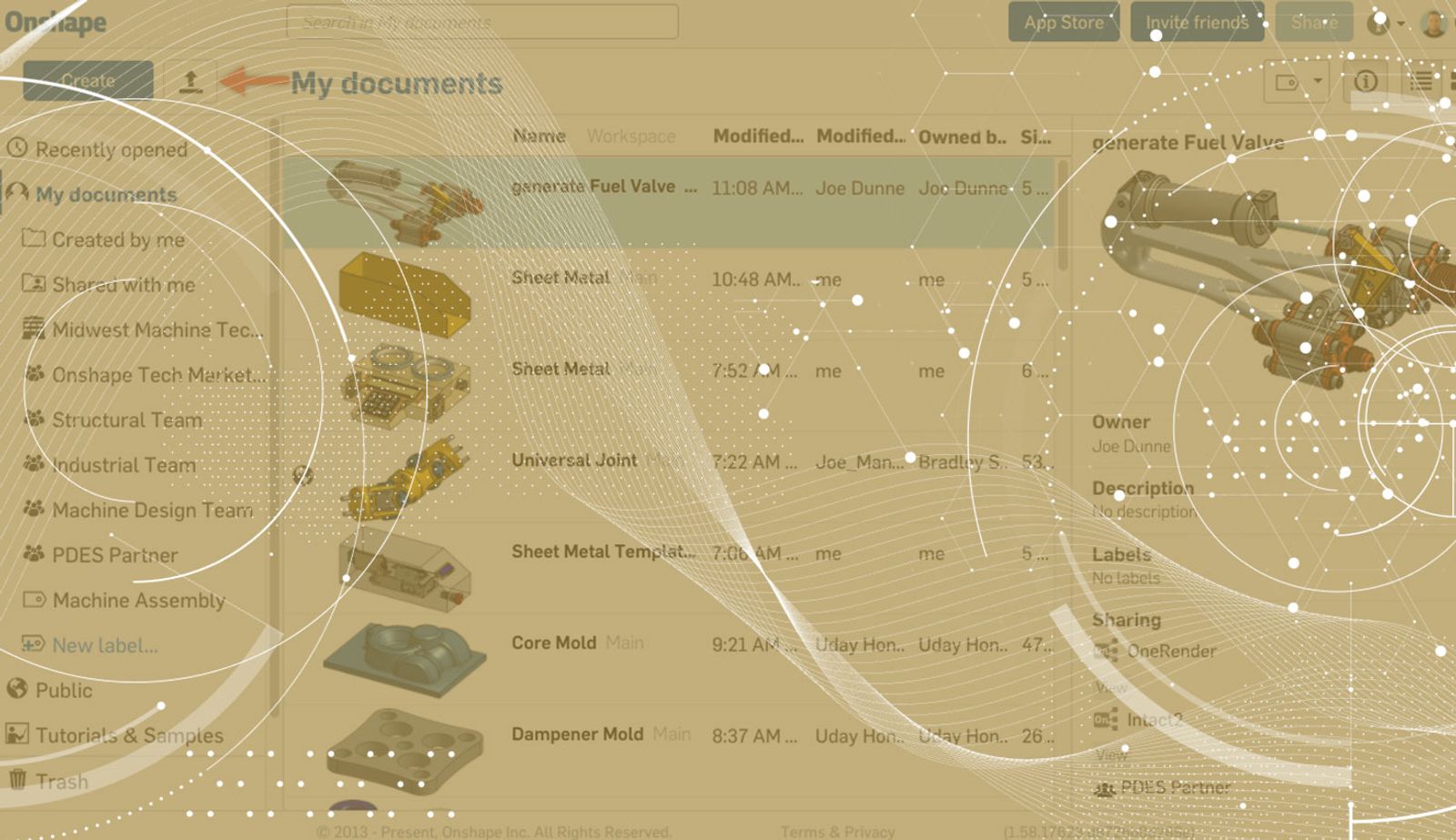
0:48
If you are moving to Onshape from another CAD system, one question you might have is, “How do I import all my CAD data from my past system?” Let’s take a look at a fast way to import many files at once.
To import files in Onshape, click the "Import" icon in the top left corner of the Documents page.
Or click the “+” icon in the bottom left corner of a Document and choose “Import.”
After clicking “Import,” a window will pop up allowing you to browse your local files. If you hold down the shift key and select the files from the top to the bottom of the list, all of these files will be selected and imported at once.
One final tip: You can also use the ctrl key to select several files at once.
Give this a try! No need to import one file at a time, simply shift + select and import everything at once.
最新コンテンツ
- ブログ
- Becoming an Expert
- アセンブリ
Built to Scale: Why Large Assemblies Don’t Slow Down in Onshape
07.16.2026 もっと見る- ブログ
- News from Onshape @ PTC
- Artificial Intelligence
Onshape Labs: AI in CAD Guided by Designers, Driven by Innovation
07.15.2026 もっと見る- ブログ
- Evaluating Onshape
- データ管理
- 共同作業
- Artificial Intelligence
How the Most Underrated CAD Feature Improves Design Workflows
07.09.2026 もっと見る