
 Crear una cuenta de estudiante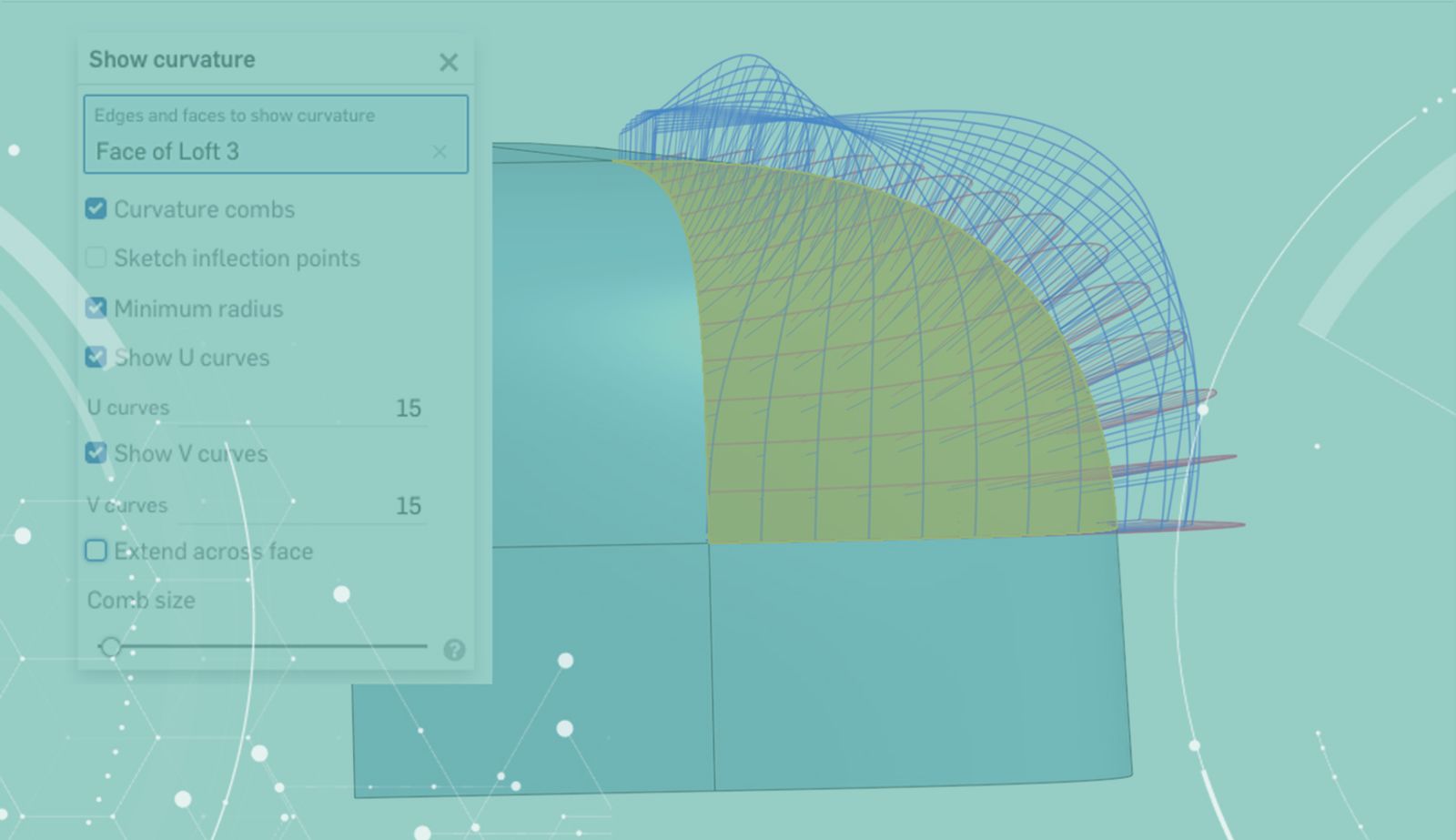

When modeling complex surface geometry, it’s important to evaluate the quality of the surfaces you create. One way of evaluating this is through looking at curvature combs of the geometry created.
The “Show Curvature” Option
You can view the curvature on a surface, edge, or sketch by simply right-clicking on the geometry and selecting “Show Curvature”.
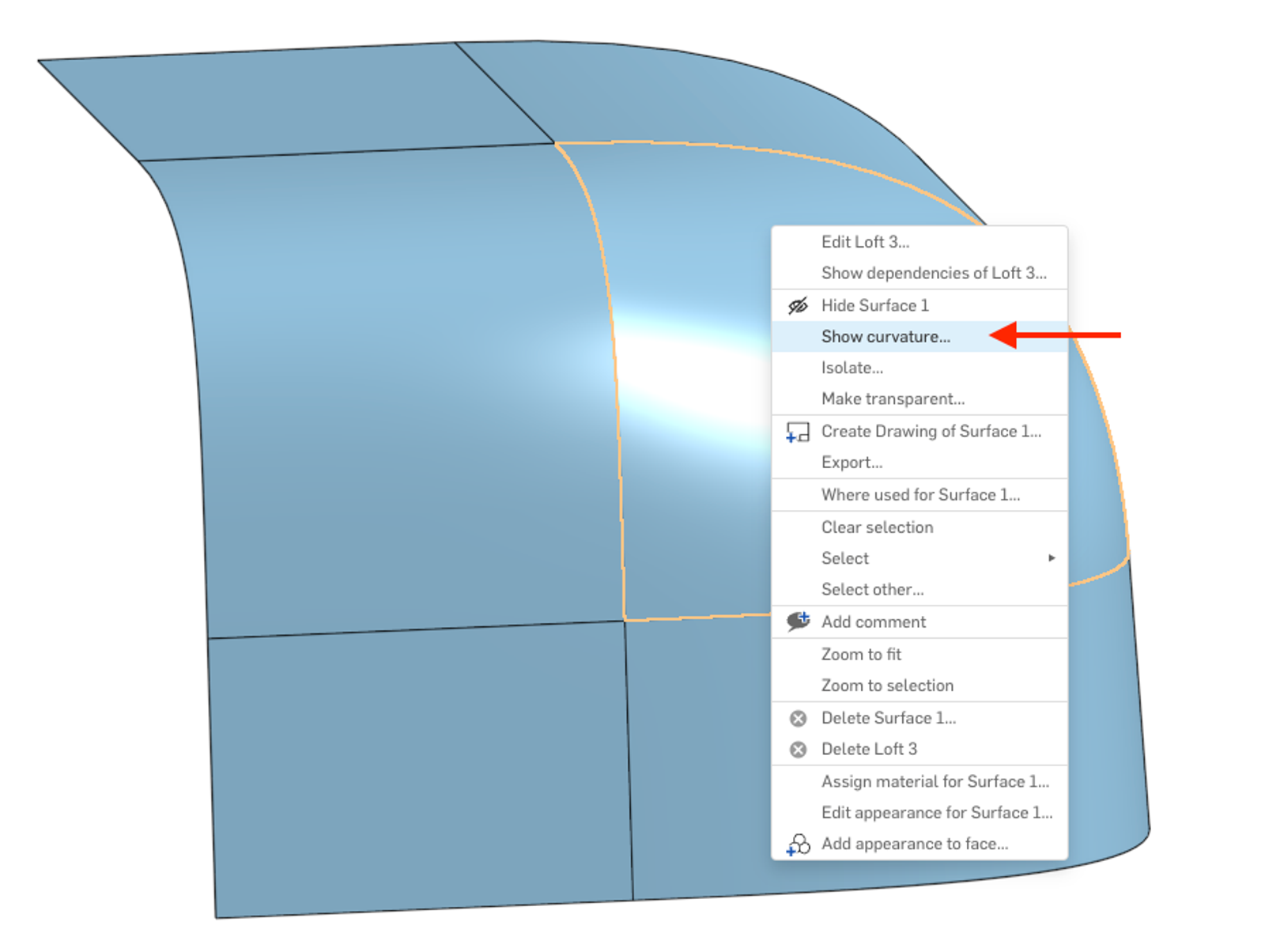
You can also activate the feature using the keyboard shortcut Shift + C.
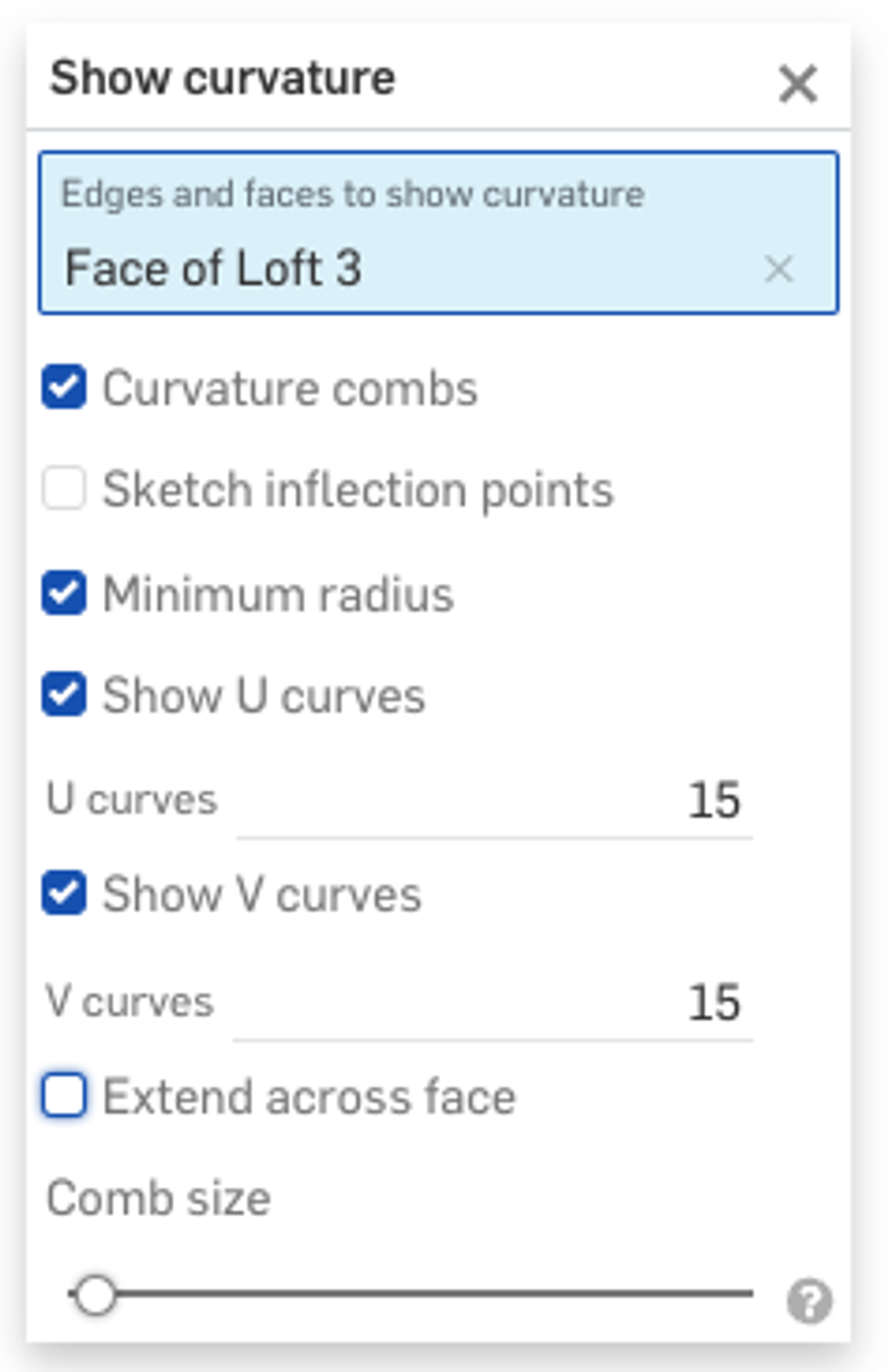
From the dialog, you can show curvature combs, inflection points, and the minimum radius value. You can adjust the number of U and V curves (if selecting a surface), and adjust the comb size from the slider at the bottom.
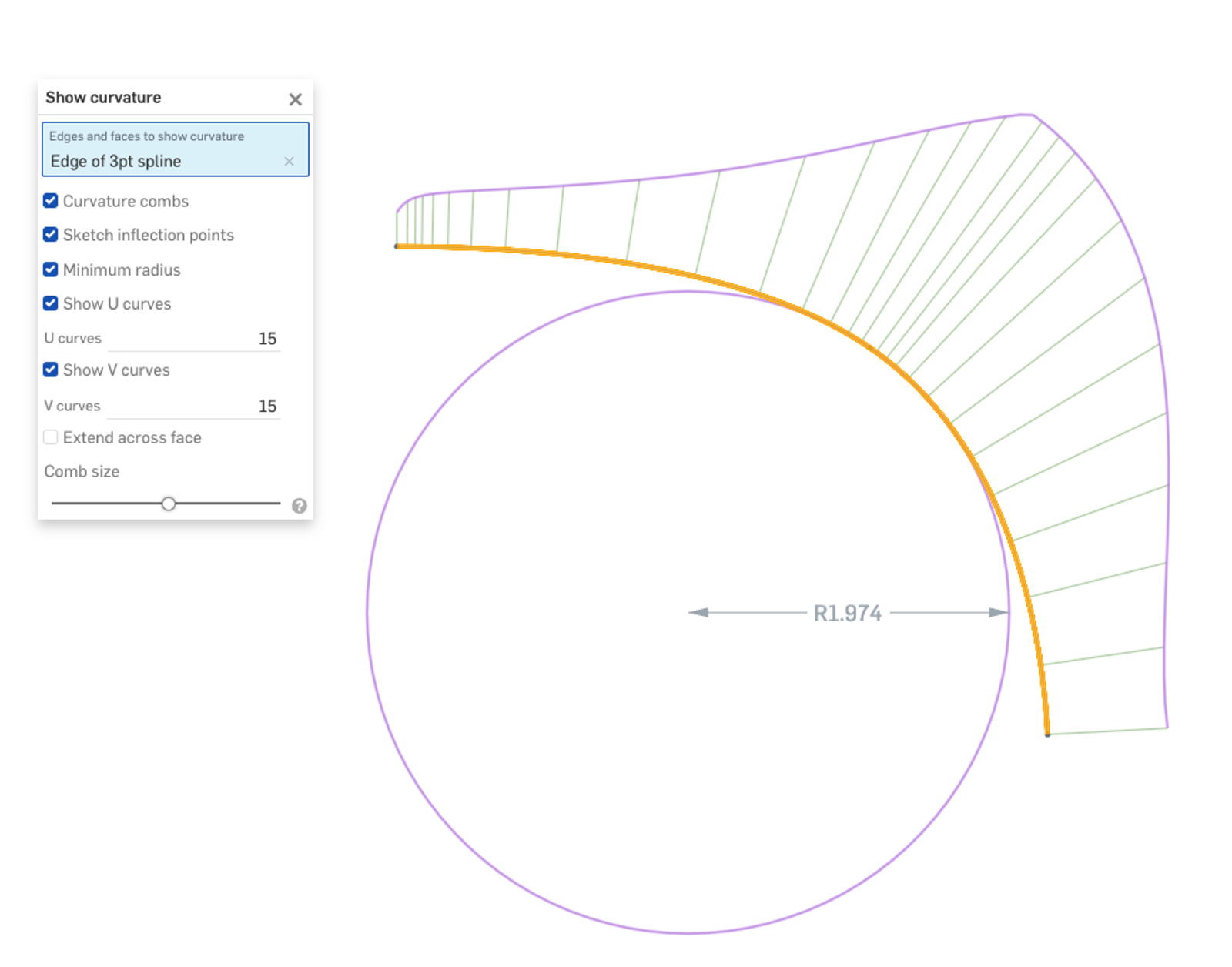
In the example above, we can clearly see that even though the spline looks smooth, the curvature changes abruptly, likely leading to a less-desirable surface result if used.
For a full demonstration, take a look at the video below:
Are you interested in learning more Onshape Tech Tips? You can review the most recent technical blogs here or visit our YouTube Tech Tip playlist.
Latest Content
- Blog
- Evaluating Onshape
- Simulación
- Representación
- Modelado de superficie
- Productos de consumo
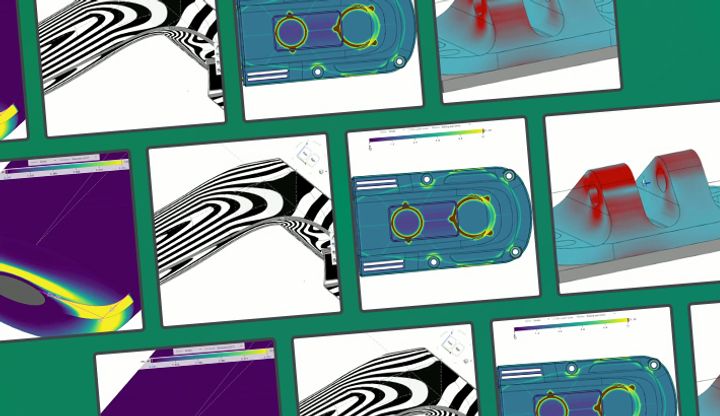
Earlier Validation, Better Outcomes: Onshape’s Approach to Surface Design
02.20.2026 Más información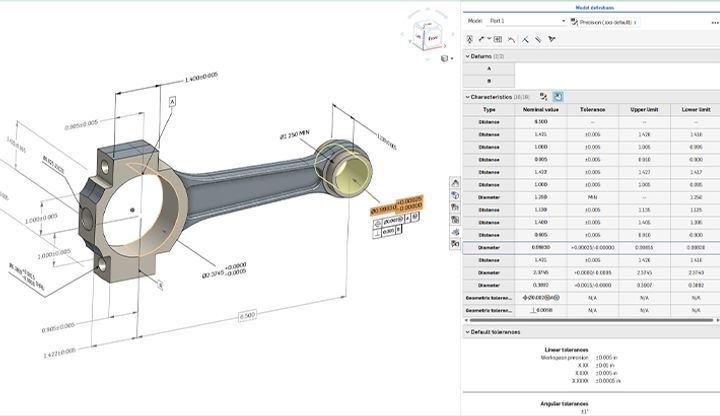
- Blog
- News from Onshape @ PTC
- Publicaciones
- Configuración
- Data Management
Onshape MBD: Single Source of Truth from Design to Manufacturing and QA
02.23.2026 Más información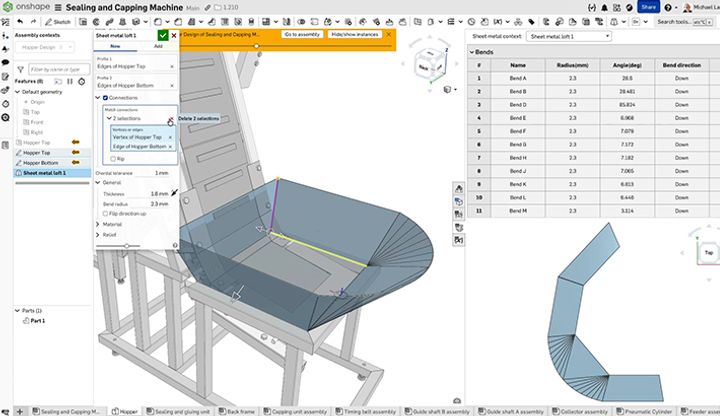
- Blog
- Becoming an Expert
- Chapa metálica
Two Views, One Model: Faster Sheet Metal Design in Onshape
02.12.2026 Más información