
 Créez un compte étudiant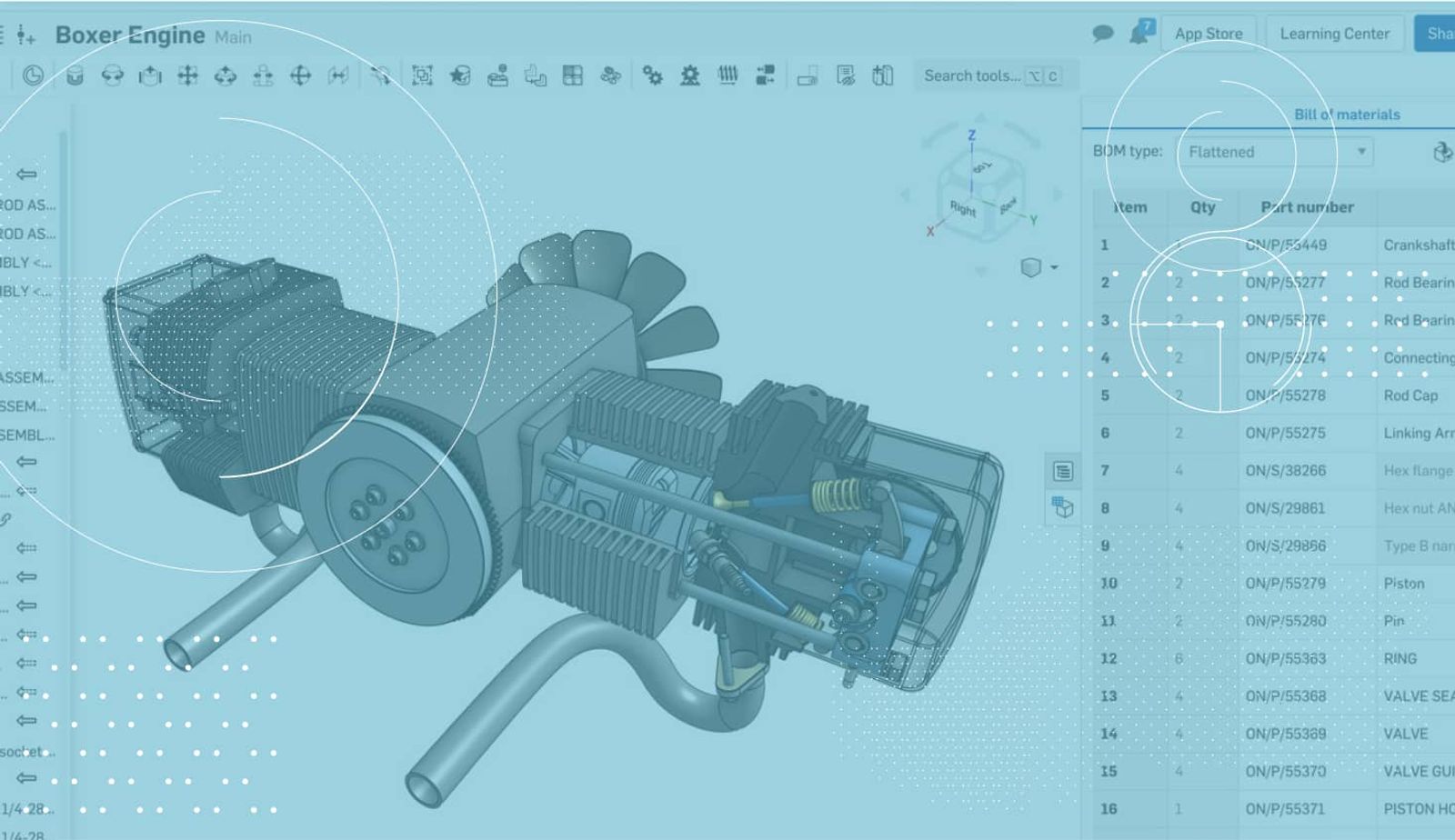
0:59
Last year, we announced the Simultaneous Bill of Materials functionality in Onshape. It gave users an automatically created, real-time updating BOM that you can interact with directly in your assembly. And as more and more users adopt this new feature, one of the more common questions we get is, “How do I exclude part or subassemblies from my BOM?” Let’s take a look.
One of the easiest ways to exclude parts or subassemblies from the BOM is to right-click on them in the BOM table in the assembly. In the right-click context menu, you will see the option to “Exclude from BOM.”
Another option is to edit the part or assembly properties. In the properties dialog, you will see a checkbox to “Exclude from BOM.”
Once a part or subassembly has been excluded, it can be included again by either unchecking “Exclude from BOM” in the properties dialog, or by choosing the “Show excluded” option in the BOM table and right-clicking the part or subassembly you want to include, and then choosing “Include in BOM.”
So that’s all it takes to exclude parts or assemblies from your BOM in Onshape. Give it a shot!
Contenu le plus récent
- Blog
- Evaluating Onshape
- Appareils électroniques
- Intégrations
- PCB Studio
How Onshape PCB Studio Pulls 3D Component Models Straight from Altium 365
05.21.2026 En savoir plus- Blog
- Evaluating Onshape
- Collaboration
- Gestion de données
What’s the Difference Between File-Based and Cloud CAD?
05.20.2026 En savoir plus- Blog
- Customers & Case Studies
- Connexion PLM Arena
Le flux de travail natif du cloud à l'origine du robot de livraison de nouvelle génération de Coco
05.14.2026 En savoir plus