
 Konto für Lernende erstellen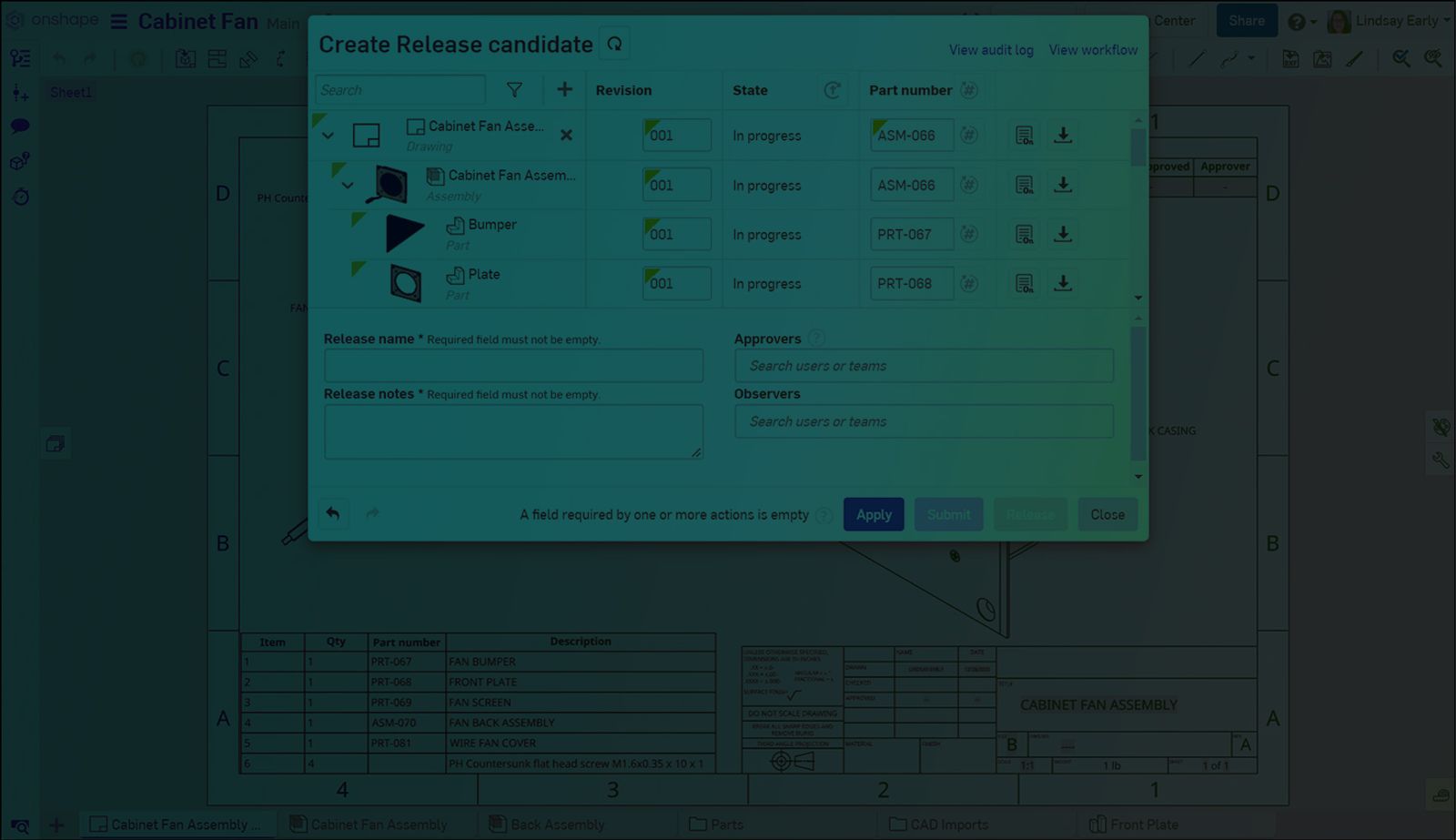
1:02
It can be convenient to use the same part numbers for the drawings of a specific part or Assembly. With the correct settings, Onshape automatically numbers drawings for you.
Numbering Schemes
There are two important Numbering schemes settings necessary to have Onshape automatically generate drawing part numbers.
First, set Number generation to Sequential part number generation. If this setting is disabled, the button to generate part numbers is not available in the Release candidate dialog (explained further below).
Additionally, set Part number uniqueness to Drawing can reuse part number from an assembly or part in the release.
Generating Part Numbers
In a Release candidate dialog, click the Generate missing part numbers button in the Part number column header. Any drawings with a blank part number automatically populate with the associated part or assembly number.
This Tech Tip helped you learn how to set drawings to use the same Part number as their referenced part or Assembly. We have more resources for you to learn more about related features, like Number schemes. See the Tech Tip on How to Use Automatic Numbering Schemes, for more on numbering schemes in Onshape.
Möchten Sie mehr technische Tipps von Onshape erfahren? Die neuesten technischen Blogs finden Sie hier.
The Onshape Learning Center
Nehmen Sie an Kursen zum Selbststudium teil, erhalten Sie technische Briefings oder melden Sie sich für eine von einem Kursleiter geleitete Schulung an.
Neuester Inhalt
- Blog
- Evaluating Onshape
- PCB Studio
- Integrationen
- Zusammenarbeit
- Konsumgüter
- Elektronik
- Medical Tech
- Robotertechnik
How Onshape and Altium Are Erasing the ECAD-MCAD Divide
04.30.2026 Mehr Infos- Blog
- Evaluating Onshape
- Datenverwaltung
5 Gründe, warum Ingenieure PDM-Software hassen
05.07.2026 Mehr Infos- Blog
- News from Onshape @ PTC
- PCB Studio
- Integrationen
- Konsumgüter
- Elektronik
- Medical Tech
Introducing the Onshape Altium Connector: True Cloud-to-Cloud ECAD-MCAD Collaboration
04.29.2026 Mehr Infos