
 Create a Student Account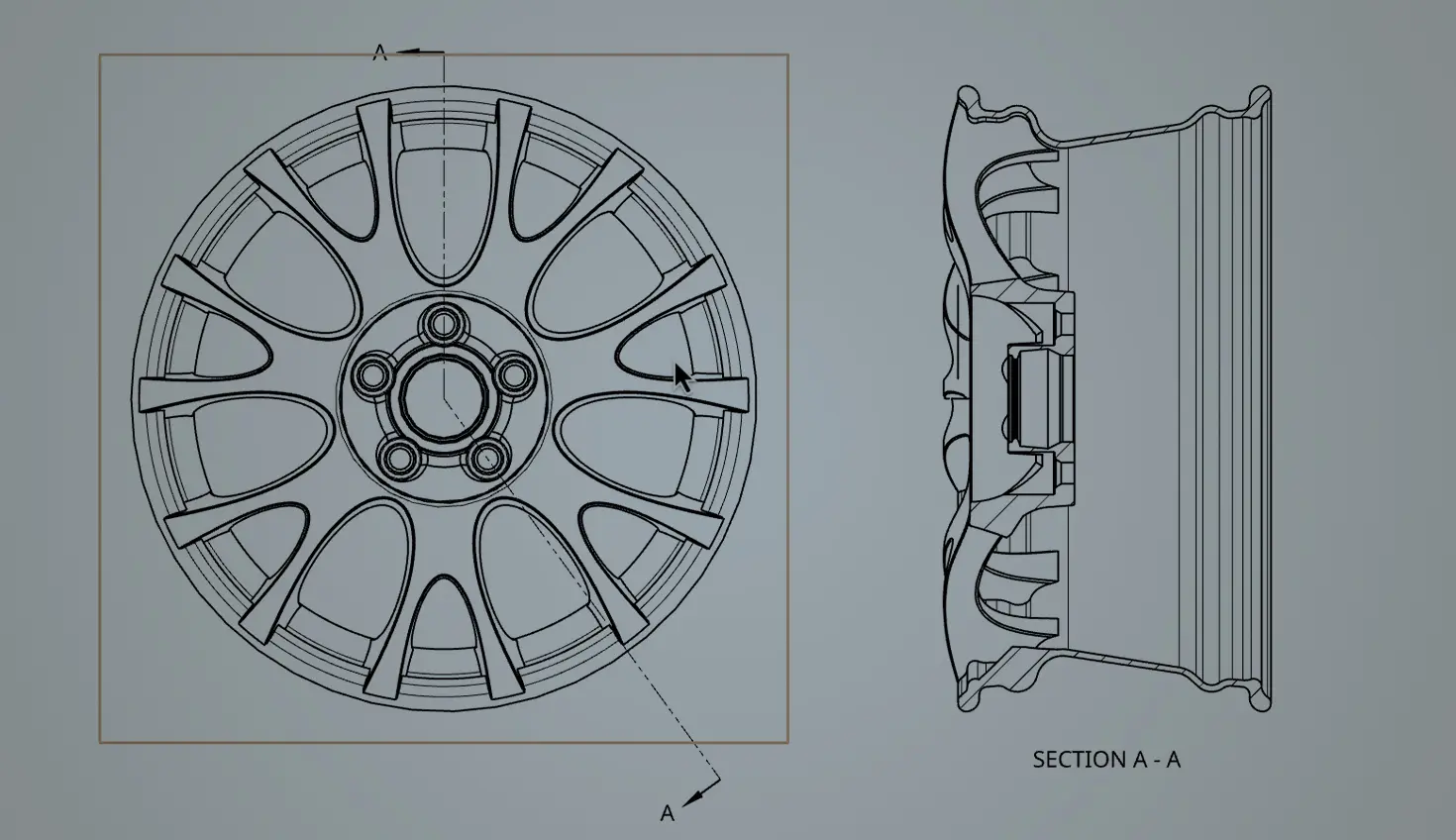
02:15
This week’s Tech Tip is a quick review of the different types of section views that can be created in Onshape’s drawings. Section views are a great way to capture and dimension internal details of a design by driving a cross-sectional cut through existing view geometry. Based on which tool you use, the cut can be vertical, horizontal, angular, aligned, or broken out from a defined area. Once cut, the new view automatically has cross-hatching applied, and there are other options available, such as showing only those faces being cut.
Standard Section View
This main Section view tool allows you to make a vertical, horizontal, or angled sectioned cut view through existing drawing view geometry, whether that existing view is a standard, ISO, detail, or even another section view.
To get started:
- Click the Section view tool
- Choose the section view type along the top of the dialog (Horizontal, Vertical, or Angular)
- Hover over an existing drawing view and select a locational reference for your section cut line (Angular requires an additional selection after the position reference)
- Place the newly sectioned view on your sheet
Optionally, you can:
- Add jogs to the cut line to get more precise positioning
- Define the depth of the section cut by the selected reference (with or without an offset) or a blind distance
- Show only the cut faces
Aligned Section View
Similar to the standard Section view tool, an aligned section view is useful in situations where some portions of the view were cut on a plane not parallel to the view plane, and those portions have been rotated onto the view plane. This view type is most commonly used on a cylindrical or partially symmetrical part. It requires three selections: one for the center reference, one for the viewing plane reference, and one for the rotated reference.
Broken Out Section View
The Broken out Section View tool generates a cut-away portion of the model in an existing drawing view by defining a closed profile with the Spline tool. The depth of the cut is then defined by a selected reference (with or without an offset distance) or a blind distance.
Named Section View from a Part Studio
Recently, Onshape added the functionality to insert any Named view that includes sections created in a Part Studio directly onto your drawing. They are now available in the View orientation dropdown on the Insert view tool dialog.
Once completed, the setting of any section view can be edited at any time by double-clicking the section line or using Edit section from the context menu of the section line or the resulting section view.
You can dig deeper into these tools and other Onshape functionality in our help documentation or by asking the Onshape AI Advisor!
Friends Don’t Let Friends Use Old CAD!
Know a colleague who could benefit from our cloud-native, fully-featured collaborative design platform?
Latest Content
- Blog
- Evaluating Onshape
- Bill of Materials
- Branching & Merging
- Data Management
- Release Management
CAD and PDM Capabilities That Speed Up Every ECO
09.17.2026 learn more- Blog
- Evaluating Onshape
- Education
Intro to Engineering: A Curriculum Built for Your First-Year Course
09.15.2026 learn more- Blog
- Artificial Intelligence
- Custom Features
AI Tokens in CAD: What Engineers Using LLMs and Coding Agents Need to Know
09.10.2026 learn more