
 Create a Student Account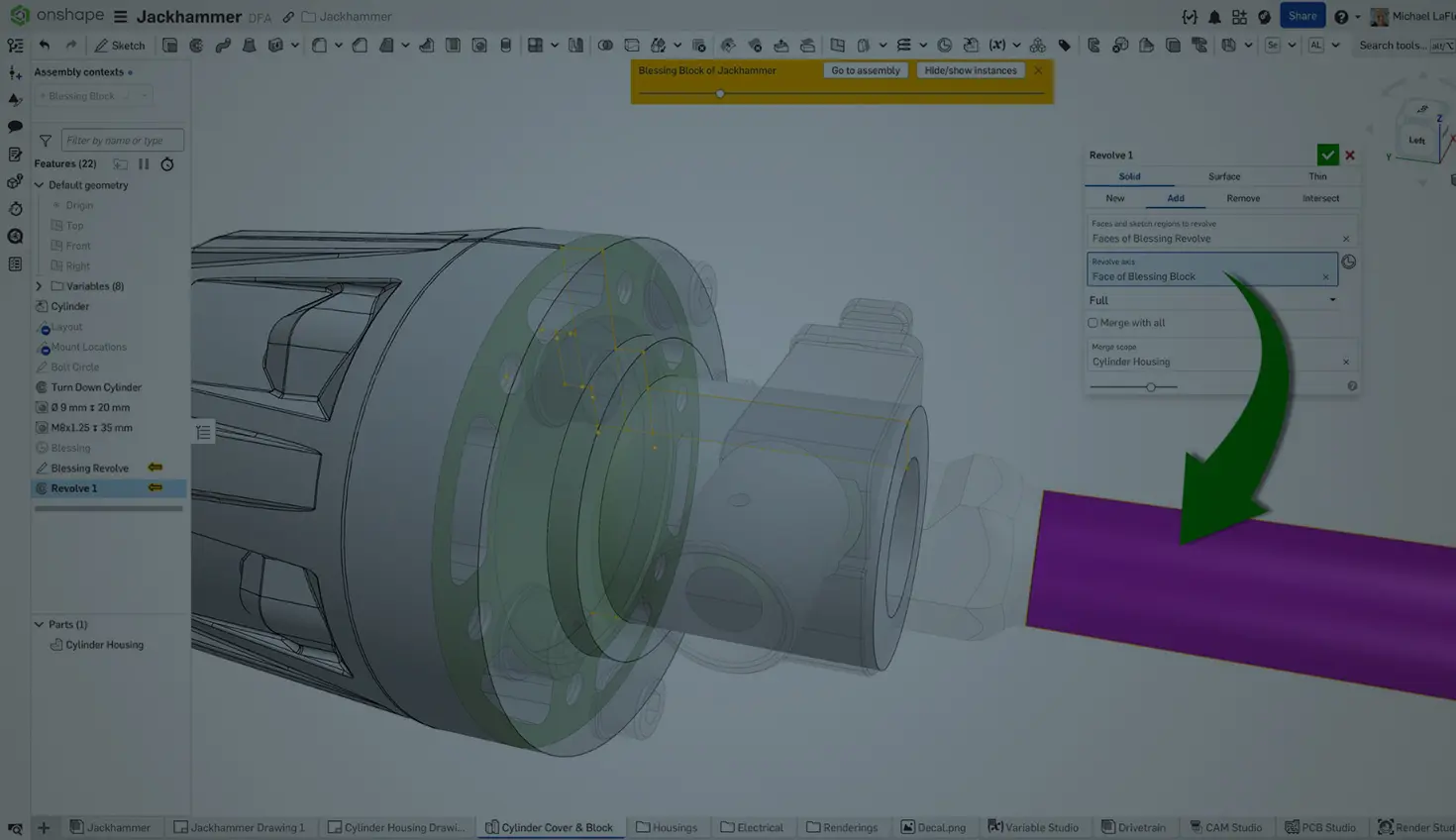
02:46
In traditional CAD systems, creating an axis often means adding a separate piece of reference geometry, a “centerline” or “datum axis”, to perform basic operations like a revolve or circular pattern. But in Onshape, working with axes is faster, more intuitive, and often does not require creating any extra features.
Revolve and Circular Patterns Without Extra Axis Features
Start in the Part Studio. When creating a revolve, you do not need to sketch a dedicated centerline or build a separate axis feature. Select a cylindrical face, edge, or solid sketch line as the axis of revolution directly in the Revolve dialog.
The same applies to circular patterns. Onshape automatically recognizes cylindrical geometry as an axis. If your design has a hole, shaft, or fastener, select its circular edge or face to define the pattern direction instantly, even if that cylinder belongs to another part in the same Part Studio.
Some designers prefer using in-context references in assemblies to relate geometry across parts. Onshape allows you to reference the cylinder of another part referenced in-context as a pattern axis, eliminating the need for an external context and fancy layout modeling in many cases.
Using Construction Lines as Axes
If your design needs an explicit, sketch-based axis, for example, when the revolve or pattern does not align with existing cylindrical geometry, use a construction line. Construction lines serve as parametric references in the sketch and can be selected directly as an axis for Revolve and Pattern features.
Learn more in the Tech Tip: How to Use Construction Lines.
Using an Implicit Mate Connector as an Axis
In a Part Studio, you do not always need to manually create a Mate connector to define an axis. When applying a Circular pattern in a Part Studio, Onshape automatically provides implicit Mate connectors at the centers of faces and edges, including flat faces like those on a square part.
To use:
- Start the Circular pattern feature.
- Click the Mate connector symbol to the right of the Axis of pattern field, then hover over the face where you want the rotation centered.
- Move your cursor toward the face center until a Mate connector symbol appears.
- Click to select that implicit Mate connector as the axis.
- Choose your Features and Instance count, then click the checkmark to confirm.
The pattern rotates about the implicit axis, without requiring extra geometry or reference features.
Because Mate connectors define full coordinate systems, this implicit axis can also be offset or transformed if needed, letting you quickly reposition your pattern without creating new sketches or datums.
Building Better CAD Habits
Working with axes in Onshape is simple because the platform was designed to remove the need for redundant reference features. Cylindrical faces, edges, construction lines, and Mate connectors are inherently intelligent; they can act as your axes, be repositioned, patterned, and transformed.
This reduces feature count, minimizes rebuild complexity, and makes your design cleaner and easier to maintain.
So the next time your old CAD habits urge you to reach for the axis button, select a cylinder, construction line, or Mate connector instead.
Friends Don’t Let Friends Use Old CAD!
Know a colleague who could benefit from our cloud-native, fully-featured collaborative design platform?
Related Learning
Latest Content
- Blog
- Evaluating Onshape
- Bill of Materials
- Branching & Merging
- Data Management
- Release Management
CAD and PDM Capabilities That Speed Up Every ECO
09.17.2026 learn more- Blog
- Evaluating Onshape
- Education
Intro to Engineering: A Curriculum Built for Your First-Year Course
09.15.2026 learn more- Blog
- Artificial Intelligence
- Custom Features
AI Tokens in CAD: What Engineers Using LLMs and Coding Agents Need to Know
09.10.2026 learn more