
 Create a Student Account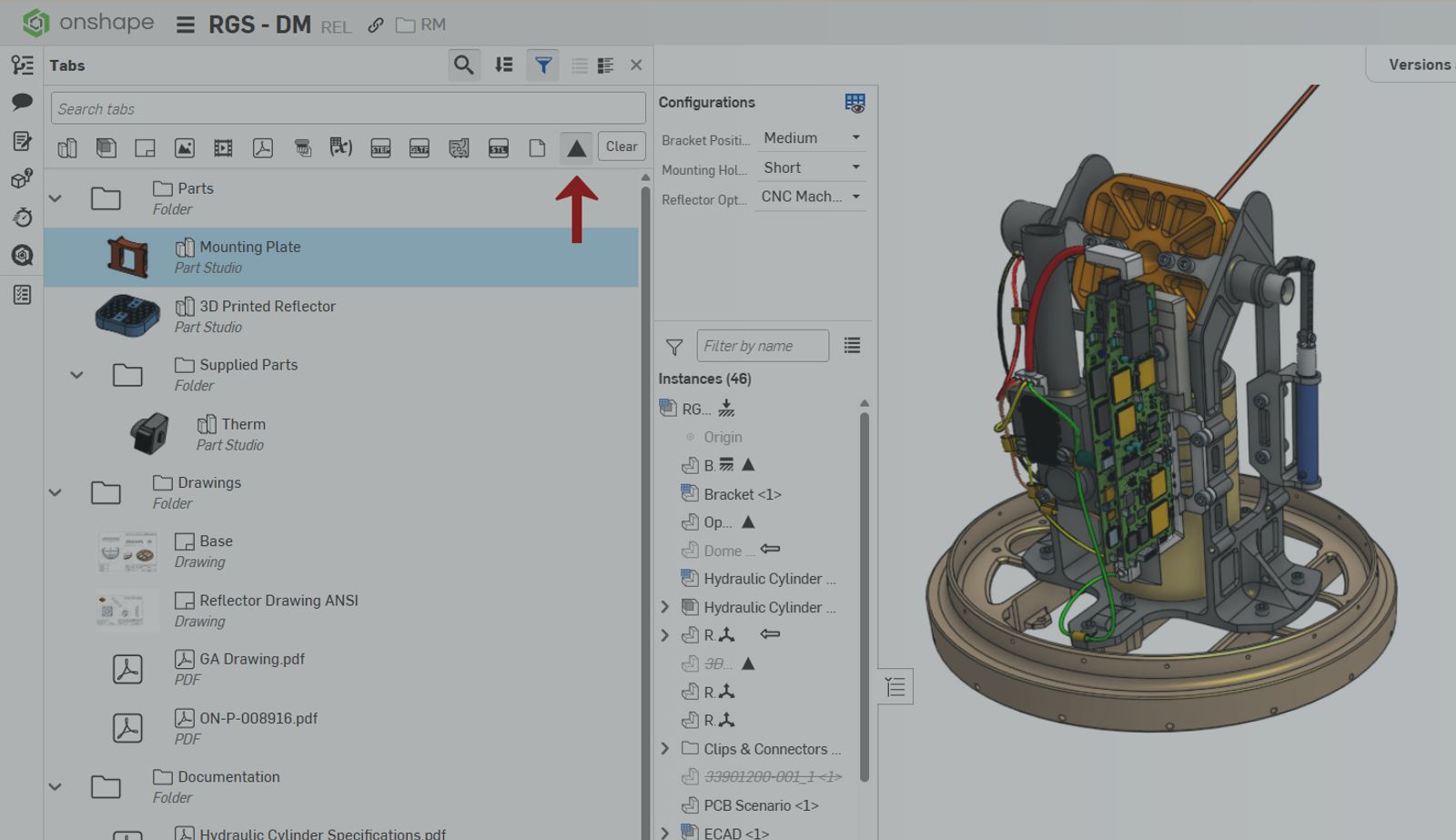
01:50
When you need to export all of the released items from a release package, like parts, drawings, PDFs, or assemblies, you might instinctively go to the release package and start exporting them one by one.
But there’s a much faster way to do it.
The Problem with Exporting from the Release Package
Open the Versions and history panel, right-click on a release version, and navigate to the Releases submenu to see all the release packages associated with that version. In this case, REL, REL1, and REL2.
Select one, and the Release Package opens. Everything released is listed here: parts, drawings, PDFs, and assemblies.
But if you need to export all of these, doing it one by one from this view could take a while. In this example, just exporting all the parts would already require at least 12 clicks.
A Faster Way: Use the Tab Manager
First, make sure you have activated the version that contains the released items.
Once you’re in that version, head over to the Tab Manager. You’ll notice that a new filter option appears in the toolbar: The triangle icon, which is the Released filter.
Click it, and the Tab Manager instantly filters to show only the released items, including their location in the document structure (folders, subfolders, etc.).
Combine Filters to Find Exactly What You Need
Now you can combine the Released filter with the type filters – Parts, Assemblies, Drawings, PDFs – to quickly isolate exactly what you want to export.
- Filter by Parts and Released, and see all your released parts
- Filter by PDF and Released, and see all your released PDFs
- Filter by Assembly and Released, and see all your released assemblies
Export Everything at Once
Once filtered, simply select all the items and right-click. You’ll see the bulk export option – Export 3 Part Studios, Export 2 Drawings – whatever matches your selection.
In summary: Instead of exporting item by item from the release package, activate the version that contains your released items, open the Tab Manager, and use the Released filter. Then combine it with your type filter of choice, and export everything in one click.
Dig deeper into these tools and other Onshape functionality in our help documentation or by asking the Onshape AI Advisor!
Onshape on YouTube
Subscribe to our channel to stay up-to-date on new product releases, Onshape Tech Tips, and more!
Latest Content
- Blog
- Evaluating Onshape
- Arena PLM Connection
The Cloud-Native CAD-PDM-PLM Workflow That Finds Problems Before They Cost You
06.11.2026 learn more- Blog
- News from Onshape @ PTC
- Artificial Intelligence
- Robotics
How Multi-Agent Orchestration Between Onshape and NVIDIA Improves CAD-to-Simulation Workflows
06.01.2026 learn more- Blog
- Evaluating Onshape
- Robotics
- Aviation, Aerospace & Defense
- Collaboration
- Integrations
- Arena PLM Connection
- Data Management
Why the Best Hardware Teams Have Started Talking Like Software Engineers
05.28.2026 learn more