
 Create a Student Account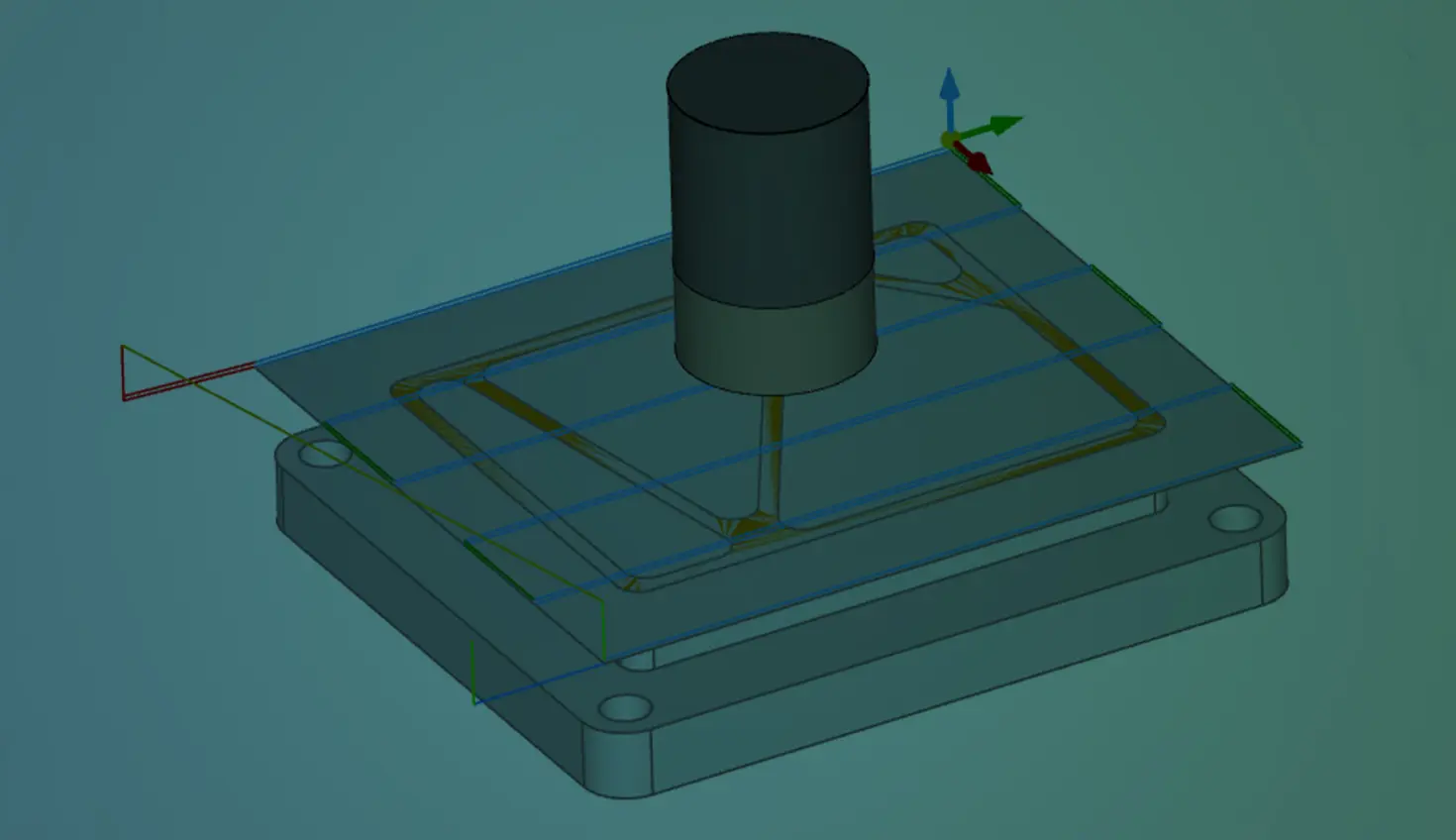
01:08
Sometimes, part geometry does not provide all the information required for an efficient toolpath.
This Tech Tip shows you how to create machining-specific geometry for use in CAM Studio.
You can use surfaces or curves as references for toolpaths.
It may come as a surprise, but toolpaths need not reference actual design geometry. Surfaces or curves created in a Part Studio can be used for toolpaths.
Consider the part in the image below. The stock is .25” thicker than the part, and .25” must be removed from the top with a facing operation. The top face of the part (orange face) is interrupted, and internal loops should be ignored for machining purposes. Creating a surface in the part studio solves this problem.
Create Machining-Specific Geometry in a Branch
A branch is a great place for machining-specific geometry. Programmers can operate in the branch without impacting design efforts. Changes from the Main workspace can be merged into the branch, and toolpaths can be updated.
The surface from the Part Studio is brought into CAM Studio by adding it as a component. The surface's display can be turned on or off, and it can be referenced for the facing toolpath.
This Tech Tip showed you how to create machining-specific geometry for efficient toolpaths.
Interested in learning more with Onshape Tech Tips? You can review the most recent technical blogs here.
The Onshape Learning Center
Take self-paced courses, read articles, or sign up for an instructor-led training session.
Latest Content
- Blog
- Evaluating Onshape
- Bill of Materials
- Branching & Merging
- Data Management
- Release Management
CAD and PDM Capabilities That Speed Up Every ECO
09.17.2026 learn more- Blog
- Evaluating Onshape
- Education
Intro to Engineering: A Curriculum Built for Your First-Year Course
09.15.2026 learn more- Blog
- Artificial Intelligence
- Custom Features
AI Tokens in CAD: What Engineers Using LLMs and Coding Agents Need to Know
09.10.2026 learn more