
 Create a Student Account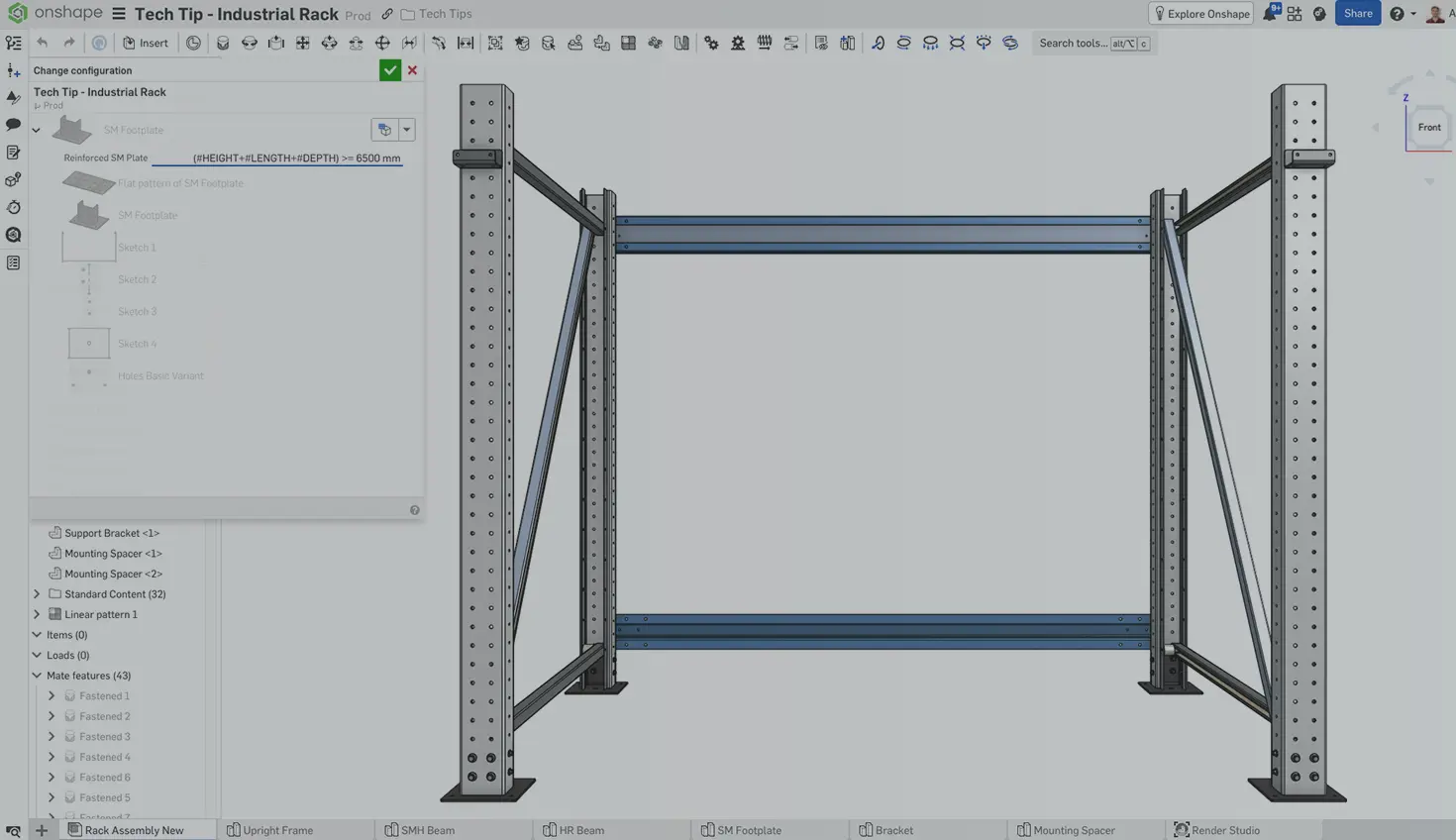
00:00
Summary
Use expressions, mathematical functions, and variables to automatically control checkbox configurations based on an Assembly’s main dimensions, reducing manual inputs and keeping configurations aligned with your design rules.
In Onshape Assemblies, checkbox inputs are a useful way to switch between different component configurations by suppressing or unsuppressing specific features.
However, when several of these choices depend on the overall size of the Assembly, manually setting each checkbox becomes repetitive. It can also create combinations that do not match the intended design rules.
With Onshape, you can now use variables and expressions to automatically control these checkbox configurations, based on the main assembly inputs. Instead of selecting each component configuration manually, you can define the conditions that determine when each checkbox is enabled or disabled.
Control Component Configurations with Checkbox Inputs
In the industrial rack, shown below, the three main dimensions, Height, Length, and Depth, are controlled by configuration variables. Additional checkbox inputs switch the braces and beams between open and closed profiles, and the footplates between standard and reinforced variants.
So how can you automatically control each of these checkboxes based on the main Assembly dimensions?
Convert Checkbox Configurations to Expressions
Instead of controlling a component checkbox manually, you can convert it to an expression.
Right-click the component instance and select “Change configuration.” Locate the checkbox input, right-click, and select “Convert to expression.” You can then enter a logical condition that references the Assembly configuration variables.
The expression must evaluate to either true or false. This determines the state of the checkbox and, consequently, the configuration of the component.
For more information about expression syntax and supported functions, refer to the FeatureScript documentation.
For the rack, let’s assume that open tubular profiles can be used for the beams and braces only when the main dimensions remain within a defined range. The expression evaluates the relevant configuration variables and automatically enables or disables the Open Profile checkbox.
A different condition can control the footplate, selecting the reinforced variant when the rack exceeds a defined size threshold. The braces, beams, and footplates do not need to use the same condition. Each component can follow its own rule.
Automatically Update Components as the Assembly Changes
Once the component checkbox configurations are driven by expressions, there is no need to add corresponding checkbox inputs to the Assembly configuration panel. Only the primary design inputs, Height, Length, and Depth, need to be displayed.
When you change one of these dimensions, Onshape automatically reevaluates the expressions. The braces, beams, and footplates then switch to the appropriate configurations according to their individual conditions.
Expressions can also be applied to checkbox inputs directly within an Assembly configuration table. In the same rack, for example, a list input could be used to switch between different footplate parts. If one of those parts includes checkbox inputs, you can control them with expressions directly in the configuration table.
This approach keeps the Assembly configuration focused on the main design inputs while ensuring that component configurations follow the intended design logic.
Learn More About Onshape Configurations
This Tech Tip showed how expressions can automate checkbox configurations inside an Onshape Assembly. By linking component variants to the main Assembly configuration inputs, you can simplify the configuration panel and reduce the need for manual updates.
To learn more, explore the related configuration resources and courses in the Onshape Learning Center.
The Onshape Learning Center
Take self-paced courses, read articles, or sign up for an instructor-led training session.
Latest Content
- Blog
- News from Onshape @ PTC
- Artificial Intelligence
- Custom Features
From Onshape Labs, the FeatureScript MCP Server: The Fastest Path to AI-Driven Design
08.11.2026 learn more- Blog
- Becoming an Expert
- Data Management
15 Things to Know Before Importing CAD Files into Onshape
08.06.2026 learn more- Blog
- Evaluating Onshape
- Model Based Definition
- PCB Studio
- Rendering
- Simulation
- Integrations
Onshape Features That Keep Your Design Data Connected: August 2026 Highlights
08.05.2026 learn more