
 Create a Student Account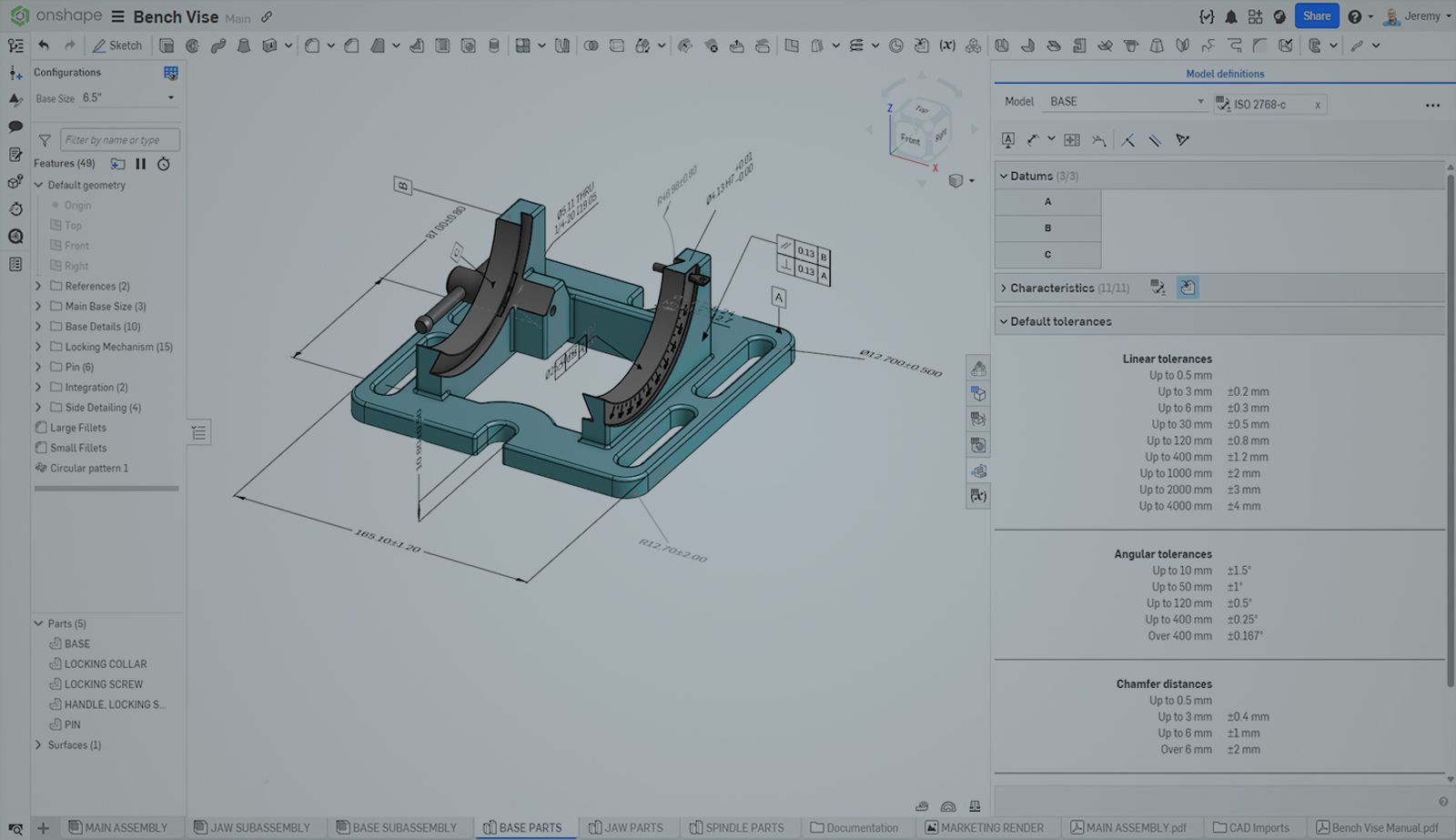
03:52
Quick Summary: Create and publish custom default tolerances in Onshape MBD using Variable Studios to automatically apply consistent tolerancing rules across all model dimensions.
With the introduction of MBD (model-based definition) in Onshape, you may want or need to create your own custom default tolerances to use on model dimensions. Default tolerances eliminate the need to define a tolerance for each dimension one-at-a-time, and instead set a tolerance based on the dimension value or the number of decimal places.
Creating a Document to Store Default MBD Tolerances
To start, you will want to create a new document to store your default tolerance information. The only thing absolutely necessary to create default tolerances are Variable Studios. However, it is extremely useful and highly recommended to create a Part Studio with at least a basic model that contains tolerant dimensions to view and test your default tolerances as they are created.
For each tolerance you wish to create within the document, add and name a new Variable Studio. The name should appear as you want the default tolerance to appear in the dropdown menu when selecting a default tolerance.
Create the Default Tolerances
Each Variable Studio will contain all of the information needed to define the default tolerances. However, modifying this information is much easier from the Part Studio that was suggested to create.
From the Part Studio, expand the Inspection tab that reveals any MBD dimensions added to your model. At the top of this panel is a button that says “Select default tolerances.” From the dialog that appears, choose the “Current document” tab.
Any Variable Studio that you create in the document will appear here. Select the name of the default tolerance you would like to define or modify from the list.
Define the Default Tolerance Rules
Once a Variable Studio is selected, a new section will appear under the tolerant Characteristics section called Default tolerances. You will also see an error stating “The Variable Studio contains no tolerance rules” (assuming you didn’t manually edit the Variable Studio).
Next to the Default tolerances name in the new section is an Edit icon. Select it, and a dialog will appear where you can define every aspect of the default tolerances.
In the lower left corner of this dialog, you can select which type of default tolerance you would like to define, for example, Linear, Angular, Fillet, etc.
Once the type has been selected, three buttons appear that allow you to select the strategy for the tolerances to be applied to that dimension type. These options include Constant, where you will be presented with a single option to define the minimum and maximum tolerance for that type of dimension. The second option is Precision, where you will be presented with a list of decimal places from non to 6 where you can define a minimum and maximum tolerance for each level of precision. And lastly, the Range option will allow you to define dimensional range bands and set tolerances for each range separately.
You will perform these steps for each dimension type you wish to include in your default tolerances, select a tolerance strategy for each, and finally define the tolerances for these choices.
Publishing Your Default Tolerances
To ensure that your default tolerances are available to the rest of your organization, there are a few final steps.
First, while in the current document, be sure to create a version using the Add Version button from the left-hand sidebar.
Next, you need to go to the root level of your company’s Folder view. At the root level, create a new Folder; it is important that this is a Folder and not a Project for Enterprise customers. Then drag and drop the previously created document with your default tolerances into this newly created folder.
You then want to ensure that this folder is shared with Link document control to anyone within your organization that will need to reference these new default tolerances.
Once it is shared, right-click on the folder and expand the sub-menu “Set library,” then choose “<Your Company Name> default tolerances.”
Using Your New Default Tolerances
Now, these default tolerances will be available to anyone within your organization. When selecting the default tolerances in future documents, these new Default tolerances will appear just like the ones created by Onshape.
Your company name will now appear under the Library pulldown, and each default tolerance (Variable Studio) within the document will appear in the Default tolerances dropdown.
You can learn more about MBD in the Onshape Learning Center, where you can learn about MBD workflows.
Friends Don’t Let Friends Use Old CAD!
Know a colleague who could benefit from our cloud-native, fully-featured collaborative design platform?
Latest Content
- Blog
- Customers & Case Studies
- Arena PLM Connection
The Cloud-Native Workflow Behind Coco’s Next-Gen Delivery Robot
05.14.2026 learn more- Blog
- Mobile and Browser Clients
- Enterprise
- Commercial (Pro/Standard)
3 Signs Your CAD Can’t Keep Up With Your Distributed Teams
05.13.2026 learn more- Blog
- Evaluating Onshape
- PCB Studio
- Integrations
- Collaboration
- Consumer Products
- Electronics
- Medical Tech
- Robotics
How Onshape and Altium Are Erasing the ECAD-MCAD Divide
04.30.2026 learn more