
 Create a Student Account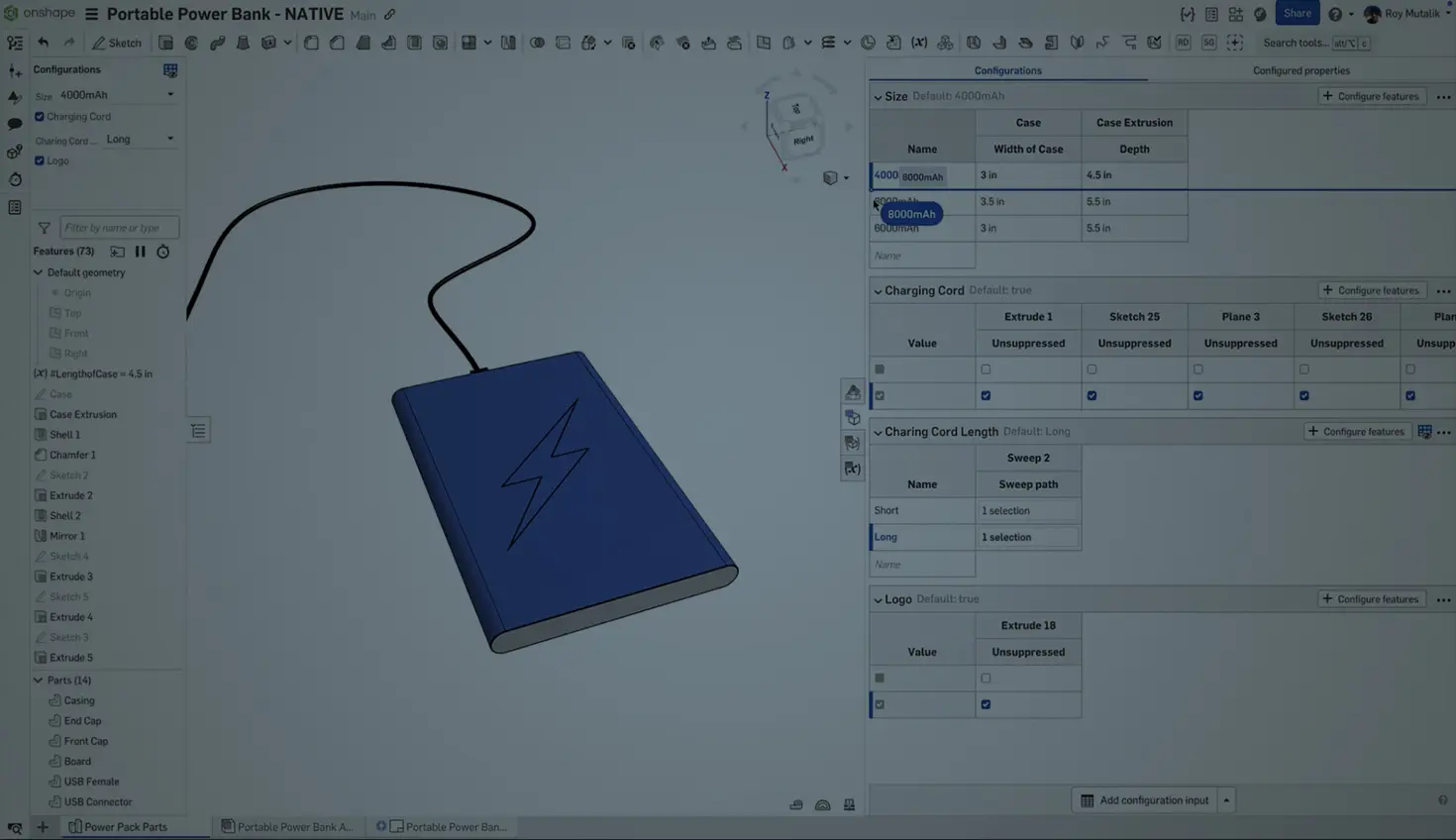
01:45
Working with configurations in Onshape just got even better. If you’ve ever struggled to organize your configuration inputs – or found yourself asking, “What dimension did I configure here?” – this Tech Tip is for you.
With recent improvements, managing and identifying configuration inputs is much easier, especially when working with complex assemblies or multiple variations of a design.
Rename Configured Dimensions for Clarity
You can now give meaningful names to configured dimensions, making it easier to understand what you’re changing at a glance. Instead of seeing “D1@Sketch1”, rename it to something like “Mounting Hole Spacing” or “Bracket Offset.” Just click the name in the configuration input panel to edit it.
This is particularly useful when sharing documents with collaborators or setting up complex configurations where clarity matters.
Reorder Inputs and Values with Drag-and-Drop
Onshape now supports drag-and-drop reordering of both configuration inputs and their list values. No more deleting and re-adding inputs just to get the right order. Just grab the handle next to the input or value and drag it into place.
This makes it easier to group related settings or prioritize frequently-used options.
Quick Visibility into Default Values
The configuration panel now displays the assigned default value for each configuration input. That means less guessing – and fewer mistakes – when you’re switching between configurations or setting up new ones.
And for those of you who work with long lists of inputs: you can now expand or collapse all configuration inputs with a single click.
WATCH: 4 Ways Onshape Configurations Save Time
Learn More About Onshape Configurations
If you’re new to Onshape configurations, check out our Learning Center pathway on Configurations. And if you’re looking for ways to combine configurations with assemblies, see our Assembly Configurations self-guided course.
Onshape Configurations just became easier to read, easier to organize, and easier to use. Now’s a great time to revisit those configurable parts and give your inputs the clarity they deserve.
Friends Don’t Let Friends Use Old CAD!
Know a colleague who could benefit from our cloud-native, fully-featured collaborative design platform?
Latest Content
- Blog
- News from Onshape @ PTC
- Artificial Intelligence
- Custom Features
From Onshape Labs, the FeatureScript MCP Server: The Fastest Path to AI-Driven Design
08.11.2026 learn more- Blog
- Becoming an Expert
- Data Management
15 Things to Know Before Importing CAD Files into Onshape
08.06.2026 learn more- Blog
- Evaluating Onshape
- Model Based Definition
- PCB Studio
- Rendering
- Simulation
- Integrations
Onshape Features That Keep Your Design Data Connected: August 2026 Highlights
08.05.2026 learn more