
 Create a Student Account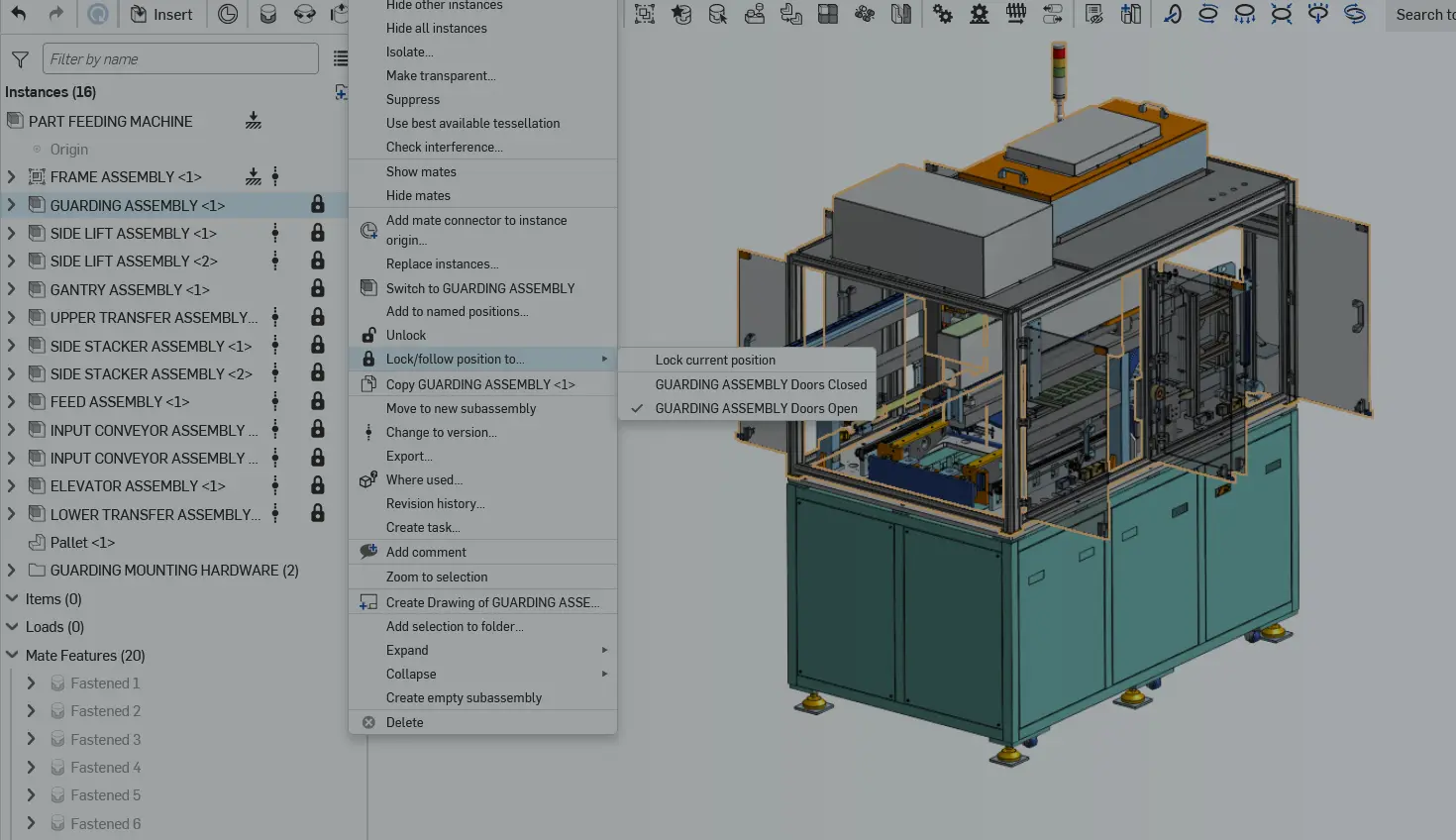
00:00
The creation of subassemblies is critical for the performance and organization of large assemblies in any CAD system.
In Onshape, there are many different tips for optimizing performance, including managing the scope of Documents and Part Studios, referencing linked versions, and browser-specific graphics recommendations.
One of the key factors specific to assemblies is managing the degrees of freedom in your assembly, or the “mate solve time.” Your mate structure affects load time, edit speed, part movement, and the overall usability of your model. Nobody likes floating parts!
This Tech Tip covers how rigid subassemblies and the “Lock/follow position” option help optimize your mate solve time in large assemblies.
To explore the model featured in this Tech Tip, you can view and copy this public document. For a deep dive into performance optimization, check out the full Onshape Learning Center course.
Understanding Rigid Subassemblies
Rigid subassemblies are highly beneficial to performance because they allow higher-level assemblies to skip mate-solve time entirely (for those subassemblies).
In the example shown below, the Frame Assembly is fully rigid, meaning none of its parts have remaining degrees of freedom. Icons in your assembly list help identify parts and subassemblies with open degrees of freedom, and the rigid icon confirms the assembly is fully constrained.
Check out this YouTube video for more details on optimizing your assembly mates.
Lock/Follow Subassembly Position
Rigid subassemblies are the optimal choice for assemblies because Onshape can ignore the mates entirely, but locking subassemblies is a great option when open degrees of freedom are required.
There are two options for locking subassemblies:
- Locking to the current position
- Locking to a named position
Hovering over a subassembly’s name in the instance list will show a lock icon, which locks that subassembly to its current position when left-clicked. Right-clicking that instance and selecting “Lock/follow position to” will give you the option to choose a named position (if any exist). Note that this locks all degrees of freedom for the subassembly, not just the mates set by the named position.
The result of locked subassemblies is improved mating time, easier adjustment of unlocked subassemblies, and direct access to named positions for any subassembly.
For more tips on improving assembly responsiveness, check out this YouTube video.
Improving Large Assembly Performance
With a combination of rigid and locked subassemblies, you can drastically improve your large assembly experience, helping you move even more quickly through your Onshape development process.
Looking to further optimize your Onshape assemblies? Check out additional performance considerations and resources in our Help Documentation, or become a customer to work directly with our Post Sales engineering team.
Friends Don’t Let Friends Use Old CAD!
Know a colleague who could benefit from our cloud-native, fully-featured collaborative design platform?
Latest Content
- Blog
- Evaluating Onshape
- Bill of Materials
- Branching & Merging
- Data Management
- Release Management
CAD and PDM Capabilities That Speed Up Every ECO
09.17.2026 learn more- Blog
- Evaluating Onshape
- Education
Intro to Engineering: A Curriculum Built for Your First-Year Course
09.15.2026 learn more- Blog
- Artificial Intelligence
- Custom Features
AI Tokens in CAD: What Engineers Using LLMs and Coding Agents Need to Know
09.10.2026 learn more