
 Create a Student Account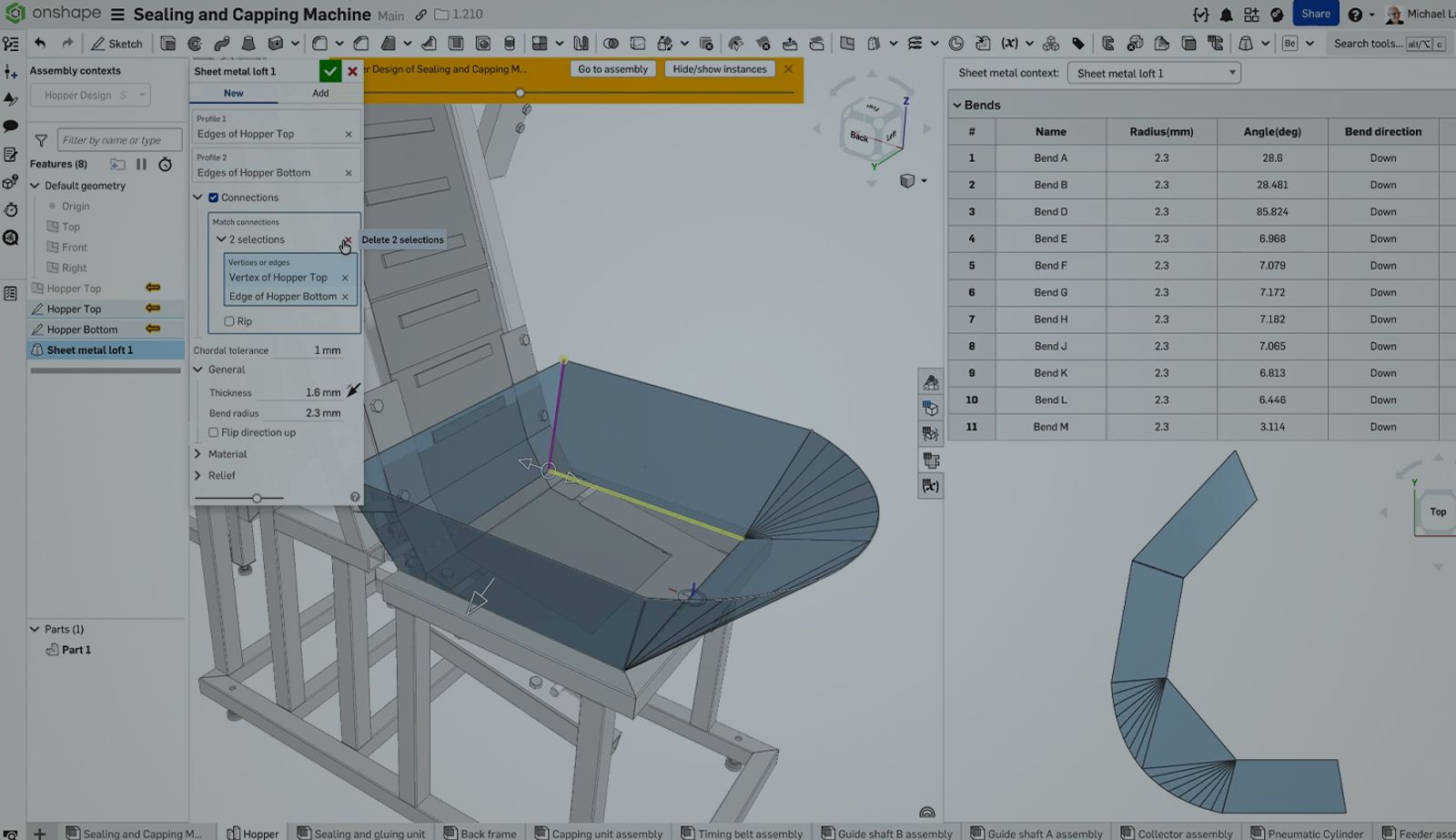
00:00
TL;DR: Onshape helps you design sheet metal faster and with fewer surprises by letting you work in the formed and flattened states as part of the same workflow, so you can spot issues earlier and keep your flat pattern aligned with the model as you iterate.
For decades, sheet metal designers would create a 3D model, click a button to generate a flat pattern, and then spend hours ensuring that changes in one environment didn’t break the other.
In legacy systems, these two representations often lived in separate files or states, leading to a high risk of manual errors and manufacturing delays.
Onshape has fundamentally changed this paradigm by unifying the design and fabrication data into a single, cohesive workflow.
In this blog, we’ll explore how to master sheet metal design in Onshape, from basic flanges to complex lofted transitions, and why its cloud-native architecture is a game-changer for modern engineers.
How Onshape Transforms Sheet Metal Modeling
If you are coming from traditional CAD, the most immediate “aha!” moment in Onshape is the Simultaneous View. This isn’t just a preview window; it is a fully integrated, multi-representation environment.
Real-Time Feedback: You can view the folded part, the flat pattern, and the sheet metal table side-by-side. If you add a flange or a hole in the 3D view, the flat pattern updates instantly. This allows you to catch design flaws – like a hole placed too close to a bend line – before the part ever reaches the shop floor.
Collaboration and Concurrent Engineering: Because Onshape is cloud-based, multiple stakeholders can view the model simultaneously. A manufacturing engineer can review your flat pattern for "manufacturability" – checking for overlapping bends, narrow webbing, or impossible clearances – while the lead designer is still refining the 3D assembly. This parallel workflow slashes lead times.
No Broken References: In traditional CAD, flat patterns are often exported as separate files that can easily become desynchronized from the master model. In Onshape, there are no external files for flat patterns. Everything lives within the Part Studio, ensuring that when you export your final data, it is always the most current version of the design.
Two Ways to Begin a Sheet Metal Model
You don’t need to start with a specialized “sheet metal part.” Onshape allows you to transition into sheet metal design at any point using two primary methods:
- Convert a Solid: This is often the most intuitive method for complex enclosures. You create a solid block representing the outer or inner volume and “shell” it into sheet metal by selecting faces to remove and edges to rip. This method ensures your sheet metal part perfectly fits the intended spatial envelope.
- Thicken a Sketch: For simpler brackets or panels, you can create a 2D surface or sketch and use the “Thicken” tool within the Sheet Metal model. This approach is faster for designs where you are building the geometry piece-by-piece.
When you start the model, you must define your Sheet Metal rules, for example:
- Material Thickness: The specific gauge of the metal you intend to use.
- Bend Radius: Usually determined by the "V-die" and "punch" available in your shop’s tooling. Setting this correctly is vital for accurate flat patterns.
- K-Factor: This is a critical ratio representing the location of the neutral axis – the area within the material thickness that neither stretches nor compresses during a bend.
Core Sheet Metal Tools Built for Fabrication
Once your model is active, the sheet metal toolbar provides the specific tools needed for fabrication. These features are designed to mimic the physical operations of a press brake:
- Flange: The primary tool for adding walls. Onshape allows you to control the alignment – whether the flange sits inside, outside, or on the middle of the edge – and handles the mitering of corners automatically to prevent material interference.
- Hem: Essential for safety and stiffening edges, especially in consumer-facing products. You can choose between rolled, teardrop, or flattened hems, and Onshape will automatically adjust the flat pattern to account for the extra material required.
- Tab: Use this to add material to an existing sheet without creating a new bend. It’s the perfect tool for creating mounting ears or interlocking tabs for assembly.
- Corner Reliefs: When three or more bends meet, the material can bunch up. You can toggle between "Square," "Round," and "Rectangular" reliefs to ensure the corner can be folded without deforming the surrounding faces.
- Bend Reliefs: These are automatically added where a flange doesn't extend the full width of the part, preventing the material from tearing at the edge of the bend. But, users can modify as needed.
Preparing Sheet Metal Designs for Manufacturing
A design isn't finished until it can be physically built. Onshape excels at the "boring, but critical" details that ensure a smooth transition from CAD to the shop. For example, many workflows will require an export to DXF/DWG which Onshape supports, and gives users the ability to customize export rules.
New Feature: Sheet Metal Loft for Complex Transitions
One of the most powerful tools in the Onshape arsenal is the Sheet Metal Loft, introduced in a February release. This is the go-to solution for complex transitions, such as a square HVAC duct transitioning into a round pipe or a hopper feeding into a conveyor.
Unlike a standard solid loft, the Sheet Metal Loft is built with fabrication in mind:
- Maintains Constant Thickness: Standard lofts can sometimes result in variable thickness at sharp corners. The Sheet Metal Loft ensures the part remains a valid, developable sheet metal object that can actually be flattened.
- Generates Bend Lines: It doesn't just create a smooth surface; it automatically calculates where the press brake operator needs to make "hits" or "brakes" to approximate a curve using a series of flat segments.
First-Pass Perfection with Onshape Sheet Metal Tools
Onshape provides sheet metal designers with a workflow where the flat pattern is an active, living participant in the design process rather than a static afterthought. By utilizing the simultaneous views, the precision of the sheet metal table, and specialized tools like the Sheet Metal Loft, you can drastically reduce the need for physical prototyping. This approach ensures your parts fit perfectly the first time they come off the press brake, saving time, reducing waste, and ultimately leading to better-engineered products.
The Onshape Discovery Program
Learn how qualified CAD professionals can get Onshape Professional for up to 6 months – at no cost!
Latest Content
- Case Study
- Industrial Equipment & Machine Design
Faster Iteration, Lower Costs: How Cloud-Native Onshape Saves Blocks €170,000 Annually While Increasing Engineering Efficiency by 30–40%
05.20.2026 learn more- Blog
- Evaluating Onshape
- Collaboration
With Cloud CAD and PDM, Flexible Design for a Summer Coolcation
07.02.2026 learn more- Blog
- Artificial Intelligence
AI in Mechanical Design: The Fourth Generation of Transformation
06.25.2026 learn more