
 Create a Student Account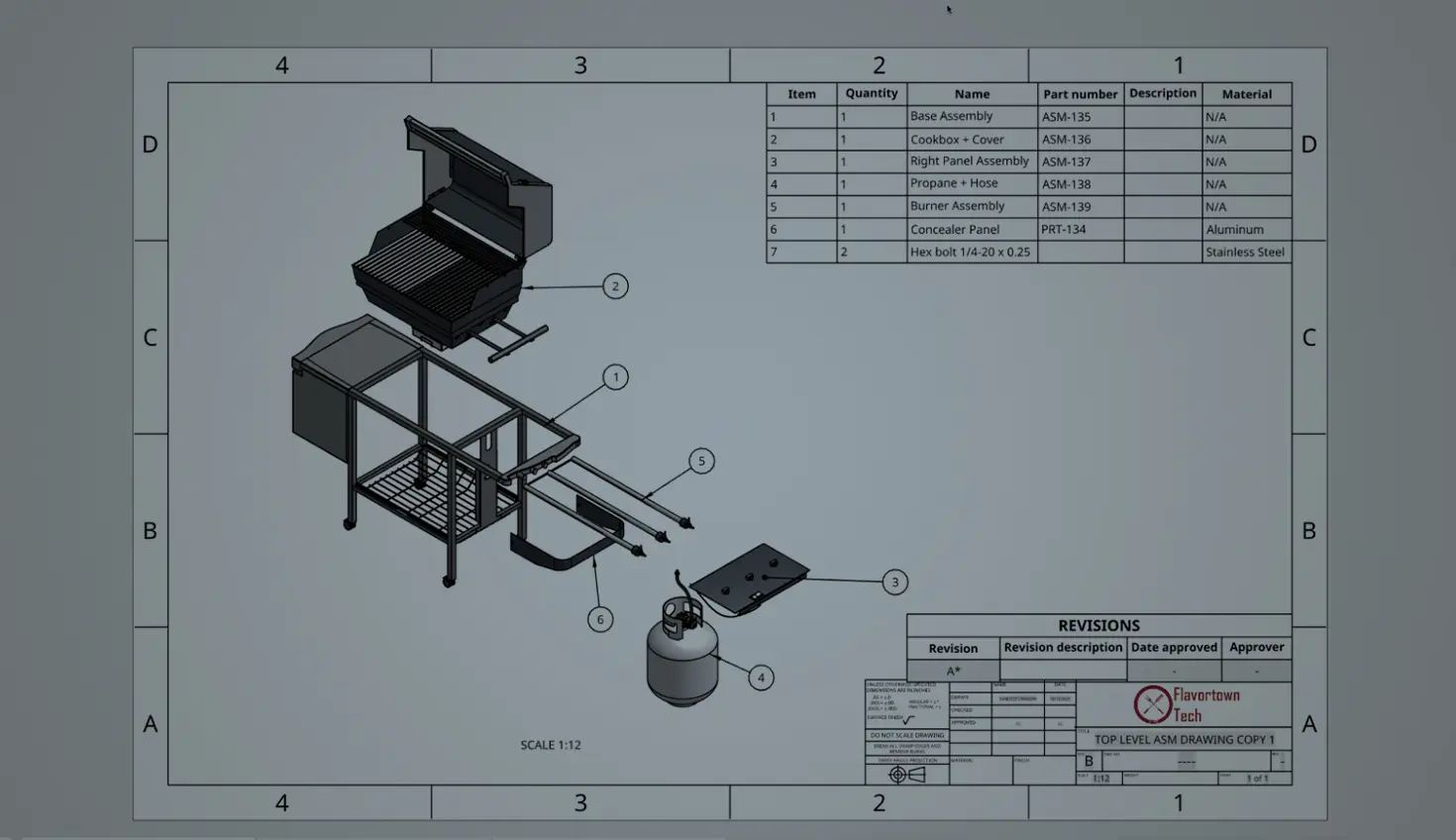
01:49
Exploded views are used to clearly communicate assembly instructions, for creating service manuals, and detailing Bills of Materials (BOMs). While creating a basic exploded view in Onshape is straightforward, leveraging its advanced features provides powerful flexibility for complex assemblies.
Here is how to get the most out of Onshape’s exploded views, focusing on multiplicity, configuration, and drawing integration.
Create Multiple Exploded Views
For complex assemblies, a single exploded view is often insufficient. You might need to illustrate specific sub-assemblies or detail a step-by-step assembly sequence. Onshape allows you to create many exploded views in a single Assembly tab.
Why Use Multiple Exploded Views?
- Clarity: Avoid visual clutter by creating separate views for specific, complex subassemblies.
- Sequencing: Illustrate a step-by-step assembly process by creating views named Step_1, Step_2, and so on. Each exploded view is composed of individual steps. You have granular control to reorder these steps, edit the translation distance or rotation angle, and add or remove components from existing steps. This allows you to fine-tune the visualization.
Creating an Exploded View
Open the Exploded views panel on the right side of the Assembly interface. Click Add exploded view to start a new one by simply picking parts and dragging along the direction for the exploded view.
Exploded Views and Configuration Parameters
You can link the parameters of an explode step (the translation distance) to your configuration variables. To do this, edit an explode step, right-click in the distance or angle field, and select Configure or link it to a variable. This allows the appearance of the exploded view, such as the spacing between fasteners, to change dynamically based on the active configuration.
Reference Any View or Configuration in Drawings
When it is time to create 2D documentation, Onshape Drawings offer complete flexibility in displaying your assemblies. You have independent control over which configuration and which exploded view are shown in any drawing view.
For more, read the blog version of the 10 advanced tips for creating exploded views in Onshape.
The Onshape Discovery Program
Learn how qualified CAD professionals can get Onshape Professional for up to 6 months – at no cost!
Latest Content
- Blog
- Evaluating Onshape
- Bill of Materials
- Branching & Merging
- Data Management
- Release Management
CAD and PDM Capabilities That Speed Up Every ECO
09.17.2026 learn more- Blog
- Evaluating Onshape
- Education
Intro to Engineering: A Curriculum Built for Your First-Year Course
09.15.2026 learn more- Blog
- Artificial Intelligence
- Custom Features
AI Tokens in CAD: What Engineers Using LLMs and Coding Agents Need to Know
09.10.2026 learn more